 LoftOS Knowledge Base
Event Badge Printer
The LoftOS Event Printer is a small desktop application you install on a computer at your event's check-in desk. It connects to your LoftOS platform, shows the events you organize and their participants, and prints a personalized name badge on a label printer.
You can print badges in two ways:
- Manually — search for an attendee, preview their badge, and print it with one click. Perfect for a staffed welcome desk.
- Automatically (Scan-to-Print) — the moment an attendee's ticket is scanned at check-in, their badge prints by itself. No searching, no clicking. Ideal for fast, self-service entrances.
It is a separate program from your LoftOS web platform — a real app that runs on Windows, macOS, or Linux. It signs in with the same email and password you use for your platform and only ever shows events where you are an organizer.
💡 The Event Printer is a companion to the Events module and its ticketing/check-in features. Set up your event, tickets, and QR-code scanning on the platform first (see Events), then use this app on event day to print badges.
✅ What You Need
Before your event, make sure you have everything below. Going through this list in advance avoids surprises on the day.
| You need | Details |
|---|---|
| A computer | Windows, macOS (Apple Silicon), or Linux. This is the machine that runs the app and is connected to the printer. |
| A label printer | A badge/label printer connected to that computer and switched on. We recommend the Brother QL-810W / QL-810Wc — it's our approved, tested model and works out of the box. The app is tuned for common Brother QL label sizes but works with any printer your computer recognizes. |
| Internet connection | Needed to log in, load events/participants, and for Scan-to-Print. (Once loaded, you can print already-loaded participants even if the internet briefly drops — see Working offline.) |
| Organizer access | Your platform account must be an organizer on the event you want to print badges for. If you can't see your event in the list, you are probably not set as an organizer yet — ask whoever manages the event to add you. |
| QZ Tray (free) | A small free helper program that lets the app send badges straight to the printer with no pop-up dialogs. This is required for automatic Scan-to-Print and strongly recommended for manual printing too. The app guides you through installing it — or download it directly from qz.io/download. |
💡 Why QZ Tray? Without it, the app can still print — but instead of going silently to your label printer, each badge opens in your computer's PDF viewer and you have to press Print yourself. That is fine for occasional, manual printing, but it makes automatic Scan-to-Print impossible. For any real event, install QZ Tray.
🏆 Recommended printer: We officially recommend and have tested the Brother QL-810W (also sold as the QL-810Wc). It's a fast thermal label printer with Wi-Fi, works reliably with the Event Printer and QZ Tray, and uses standard Brother QL label rolls — including the 62mm sizes this app is tuned for. If you're buying a printer for your event, this is the safe choice.
📥 Installing the App
- Download the installer for your computer. These links always point to the latest version:
- Windows: event-printer-windows-x86_64.exe
- macOS (Apple Silicon): event-printer-macos-aarch64.dmg
- Linux: event-printer-linux-x86_64.AppImage
- Run the installer.
- Windows: double-click the
.exeand follow the prompts. - macOS: open the
.dmgand drag LoftOS Event Printer into your Applications folder. - Linux: make the
.AppImageexecutable and run it.
- Windows: double-click the
- Open the app. It's called LoftOS Event Printer. The first time you open it, you'll be guided through a short setup.
⚠️ macOS first-launch warning: If macOS warns that the app is from an unidentified developer, right-click (or Control-click) the app icon and choose Open, then confirm. You only need to do this once.
🚀 First-Time Setup (Printer Wizard)
The very first time you log in, the app runs a 3-step wizard to get your printer working. You can skip any step and finish it later from Settings → Re-run Setup Wizard.
Step 1 of 3 — Install QZ Tray
QZ Tray is the free helper that lets badges print silently.
- Click Download QZ Tray. Your web browser opens the QZ Tray download page (qz.io/download).
- Download and install QZ Tray for your operating system. It's free and available for macOS, Windows, and Linux.
- After installing, make sure QZ Tray is running — you should see its icon in your menu bar (macOS) or system tray (Windows, bottom-right).
- Back in the app, click Continue to Certificate Setup.
If you already have QZ Tray installed, just click Continue to Certificate Setup.
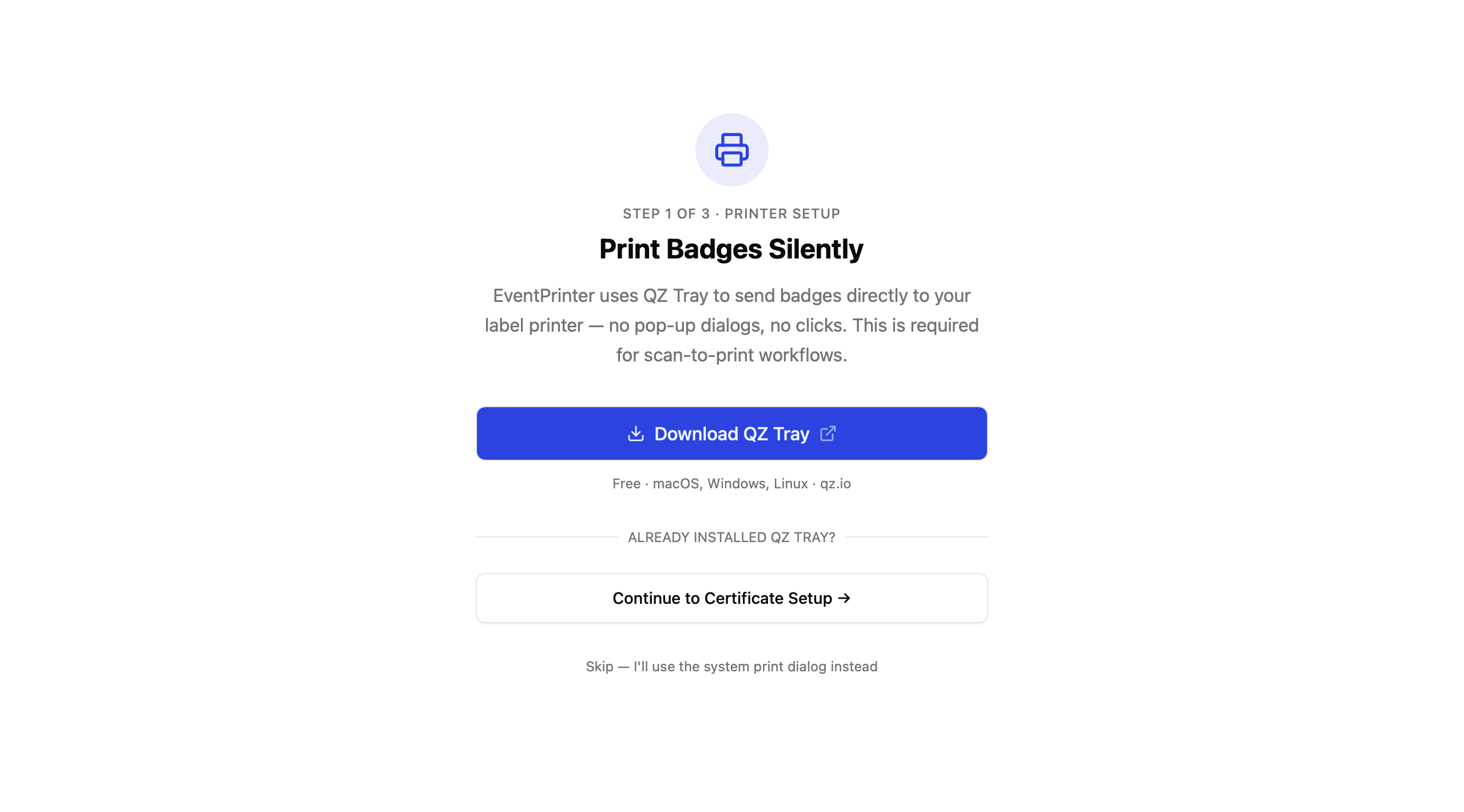
If you genuinely don't want silent printing, you can click "Skip — I'll use the system print dialog instead". Badges will then open in your PDF viewer for you to print manually, and Scan-to-Print will not be available.
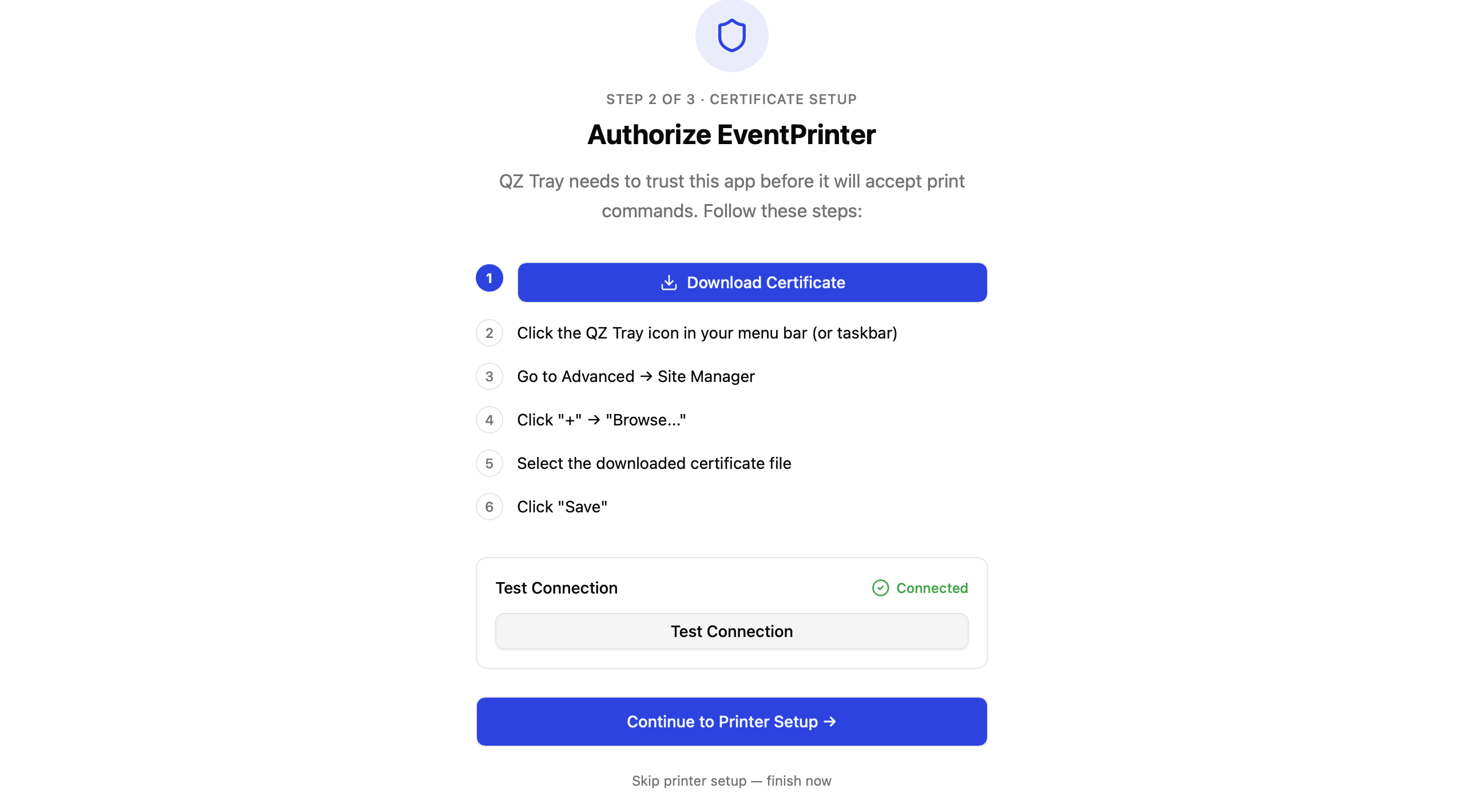
Step 2 of 3 — Authorize the App (Certificate)
QZ Tray will only accept print commands from apps it trusts. This one-time step tells QZ Tray to trust the Event Printer. Follow these steps in order:
- Click Download Certificate in the app. The app saves a small certificate file and shows you where it was saved (remember this location — you'll select it in a moment).
- Click the QZ Tray icon in your menu bar (macOS) or taskbar (Windows).
- Go to Advanced → Site Manager.
- Click "+" → "Browse…".
- Select the downloaded certificate file from step 1.
- Click "Save".
Now click Test Connection in the app:
- ✅ Connected — perfect, click Continue to Printer Setup.
- ❌ Not detected — make sure QZ Tray is running and that you imported the certificate correctly, then click Retry Connection.
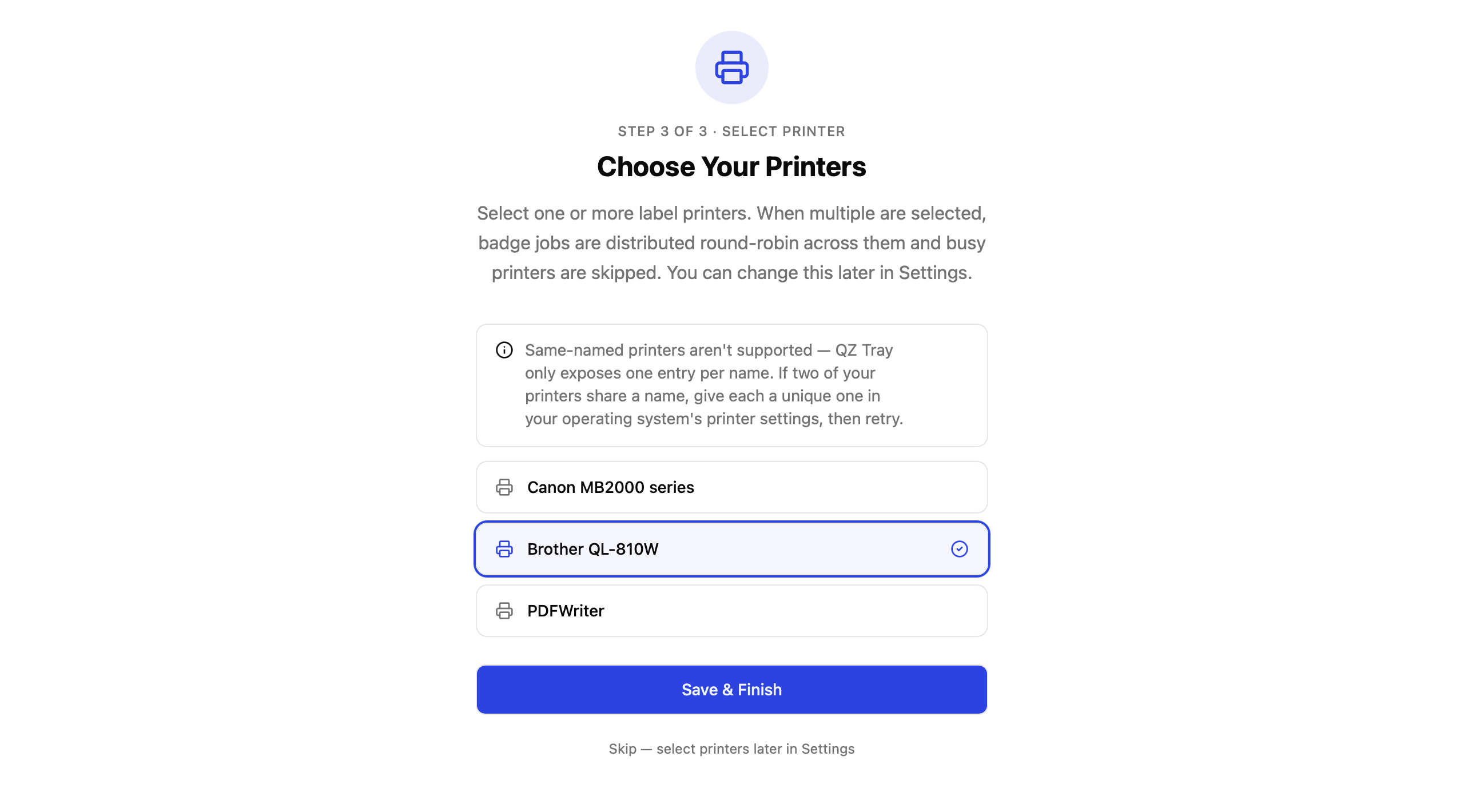
Step 3 of 3 — Choose Your Printer(s)
- The app lists every printer your computer can see. (If the list is empty, make sure your printer is connected and turned on, then click Retry.)
- Tick the printer you'll use for badges. If you only have one printer, it's selected automatically.
- You can select more than one printer — see Using multiple printers.
- Click Save & Finish.
⚠️ Two printers with the same name? The app identifies printers by their name, and QZ Tray only shows one entry per name. If you have two identical printers, give each a unique name in your operating system's printer settings first, then click refresh.
Once the wizard is done, you land on your Events list and you're ready to print.
🔐 Logging In
The app signs in to your LoftOS platform with your normal account.
- Platform URL — type your platform's web address, e.g.
https://your-platform.loftos.com. - Email — the email address you use to log in to the platform.
- Password — your platform password.
- Click Login.
If your account uses two-factor authentication (MFA): after entering your password you'll be asked for your MFA Code. Open your authenticator app, type the 6-digit code, and click Verify MFA.
The app remembers you, so you usually stay logged in between sessions and don't need to sign in every time you open it.
To switch accounts or platforms: click Logout (top-right of the Events list), then log in again with the other details.
💡 You can change the app's language (English / Deutsch) using the language picker on the login screen and in Settings. This changes the app's buttons and menus and the language of text on the printed badge.
📋 Using the App
The Events List
After login you see My Events — every event where you are an organizer.
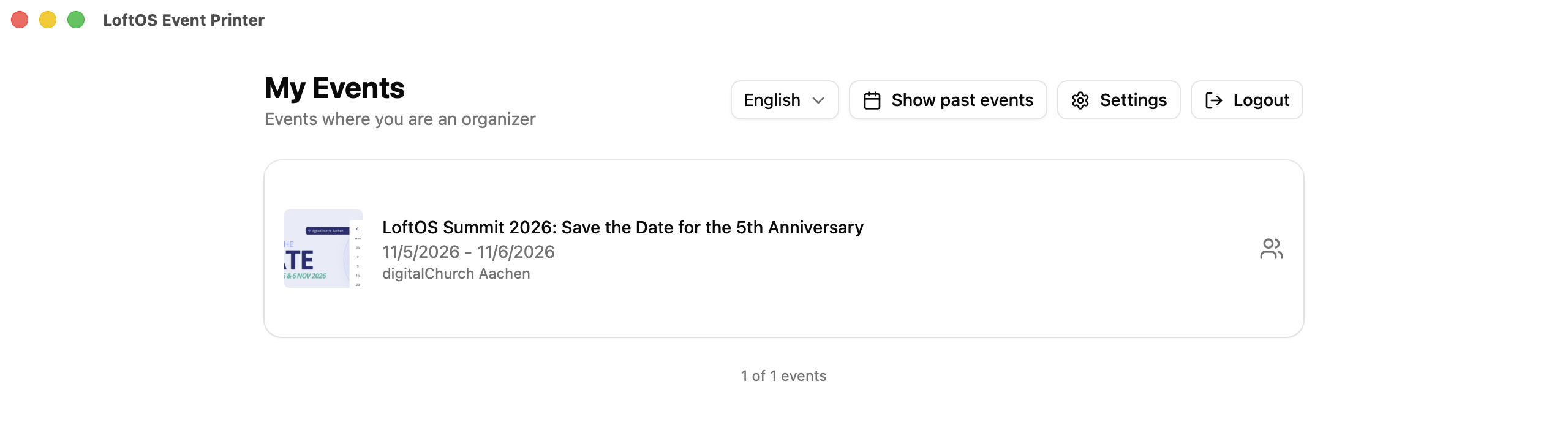
- Each event shows its image, name, dates, and location.
- By default you see upcoming events. Click Show past events to switch to events that have already happened (and Show upcoming events to switch back).
- If you have many events, click Load more at the bottom to load the next batch. The counter shows e.g. "25 of 80 events".
- Click an event to open its participant list.
Top-right buttons: language picker, Show past/upcoming events, Settings, and Logout.
The Participant List
Inside an event you see everyone registered, with their photo, name, position, and company. The header shows the total participant count.
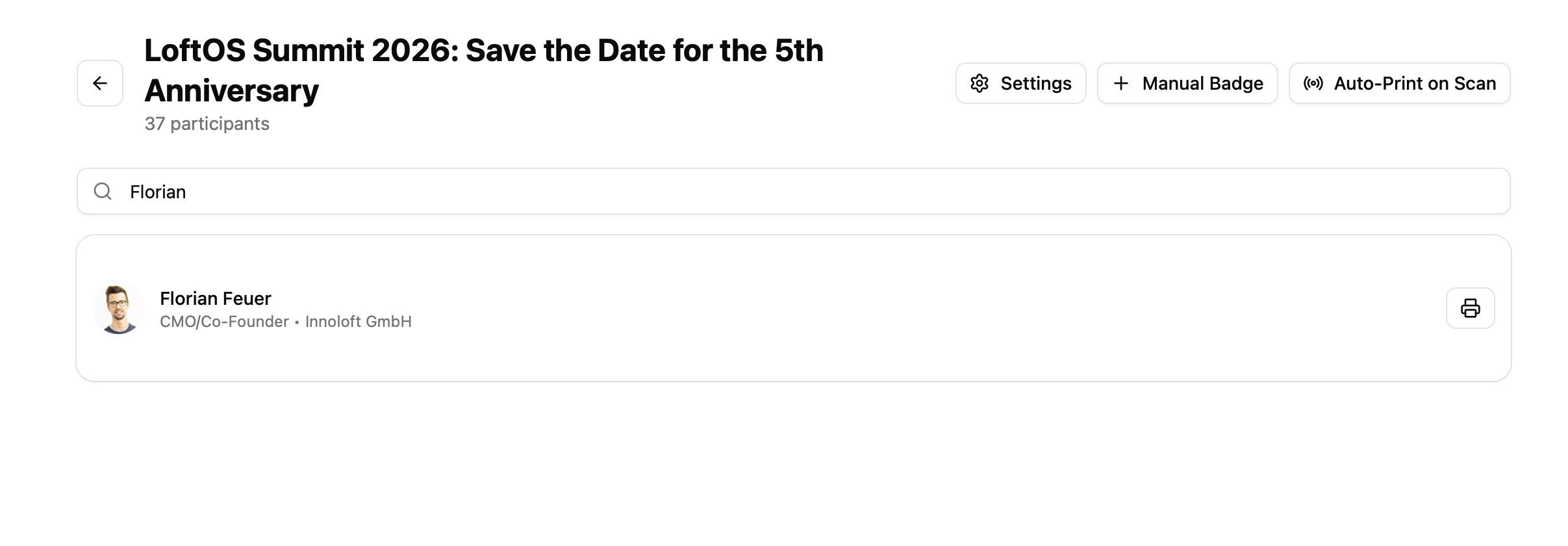
- Search — start typing in the search box to filter by name, email, or company. Great for finding one person quickly at a busy desk.
- Click any person to open the Badge Preview panel on the right.
Top-right buttons: Settings, Manual Badge, and Auto-Print on Scan (Scan-to-Print). An Offline indicator appears here if your internet drops.
Printing a Badge Manually
You have two ways to print a single attendee's badge:
- Quick print: click the small printer icon on the right of a person's row. The badge prints immediately.
- Preview then print: click the person to open the Badge Preview panel, check it looks right, then click Print.
The badge uses your event's brand colors and logo where available, falling back to your platform's theme colors. How the badge looks is fully controlled in Settings.
Printing a Custom / Walk-In Badge (Manual Badge)
For walk-ins, VIPs, press, or anyone not in your participant list, you can print a one-off badge:
- Click Manual Badge (top-right of the participant list).
- Enter First Name, Last Name, Position / Job Title, and Organization. At least a first or last name is required; the other fields are optional.
- Click Print Badge.
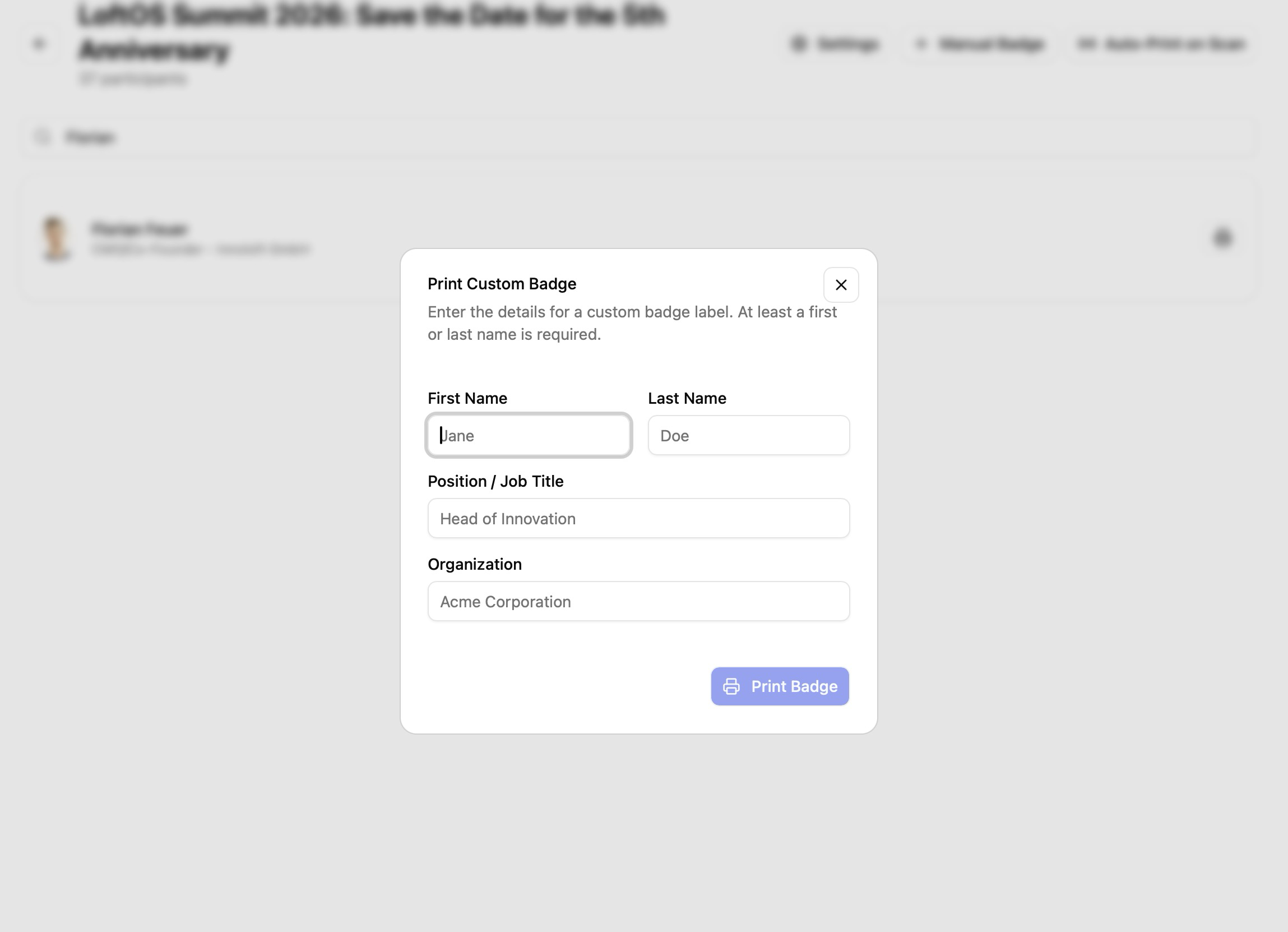
The badge prints using your current design settings, just like a regular one.
📡 Scan-to-Print (Automatic Printing)
This is the app's headline feature for fast check-in: a badge prints automatically the instant an attendee's ticket is scanned at the entrance.
How It Works
- Somewhere at your event, tickets get scanned — typically by a staff member scanning the attendee's QR-code ticket in the LoftOS mobile app at the door.
- This Event Printer app, running on a computer next to your label printer, watches for new scans every few seconds.
- When it sees a newly scanned ticket, it matches it to the attendee and prints their badge automatically. A small message confirms "Printing badge for [Name]".
The scanning station and the printing computer can be the same machine or two different machines — as long as both are signed in to the same event. A typical setup is one phone/tablet scanning tickets at the door and one laptop-plus-printer producing badges.
Turning It On
- Open the event's participant list.
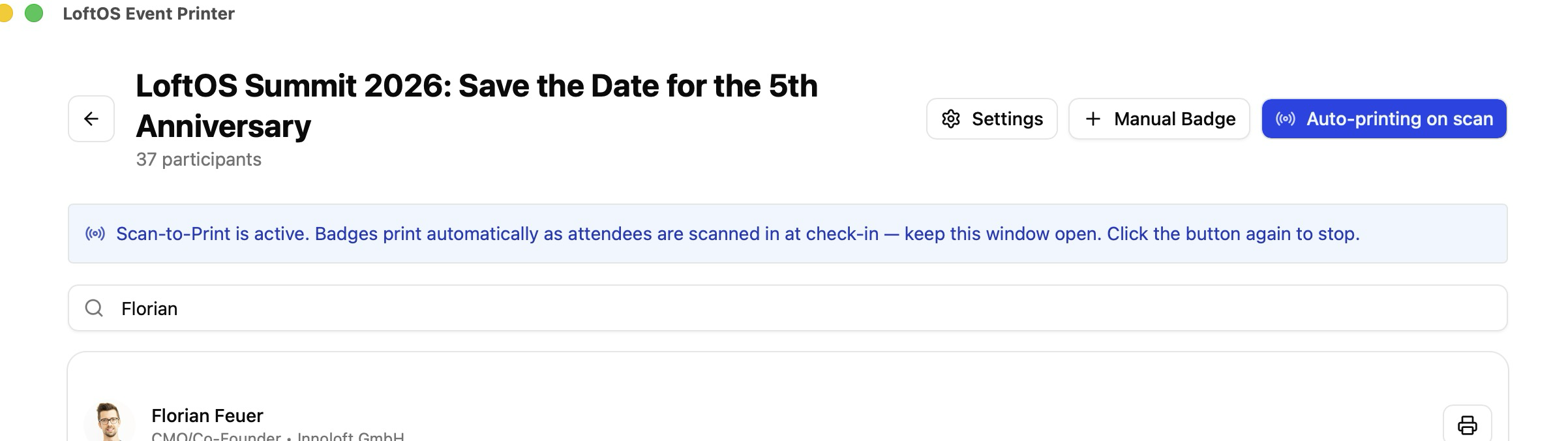
- Click Auto-Print on Scan (top-right). The button starts pulsing and shows Auto-printing on scan, and a blue banner confirms it's active.
- Leave this window open. Badges now print on their own as people are scanned in.
- To stop, click the button again.
Important Requirements
- ✅ Internet is required. Scan-to-Print does not work offline. If you're offline, the button is disabled.
- ✅ A printer must be set up with QZ Tray (see the setup wizard). Without silent printing, automatic printing can't work.
- ✅ The window must stay open while you want auto-printing to run.
- ✅ Tickets must actually be scanned through the platform so the scan is recorded server-side.
💡 No double prints: When you switch Scan-to-Print on, the app takes a snapshot of everyone already scanned in, so it won't reprint badges for people who arrived earlier. Only new scans from that moment on trigger a print.
💡 Ticket personalization: If a ticket has a personalization (a custom name the buyer entered that's different from the attendee's own name), the badge shows that personalization instead — and automatically hides the profile picture, position, and QR code for that badge.
⚙️ Settings (Customizing Your Badge)
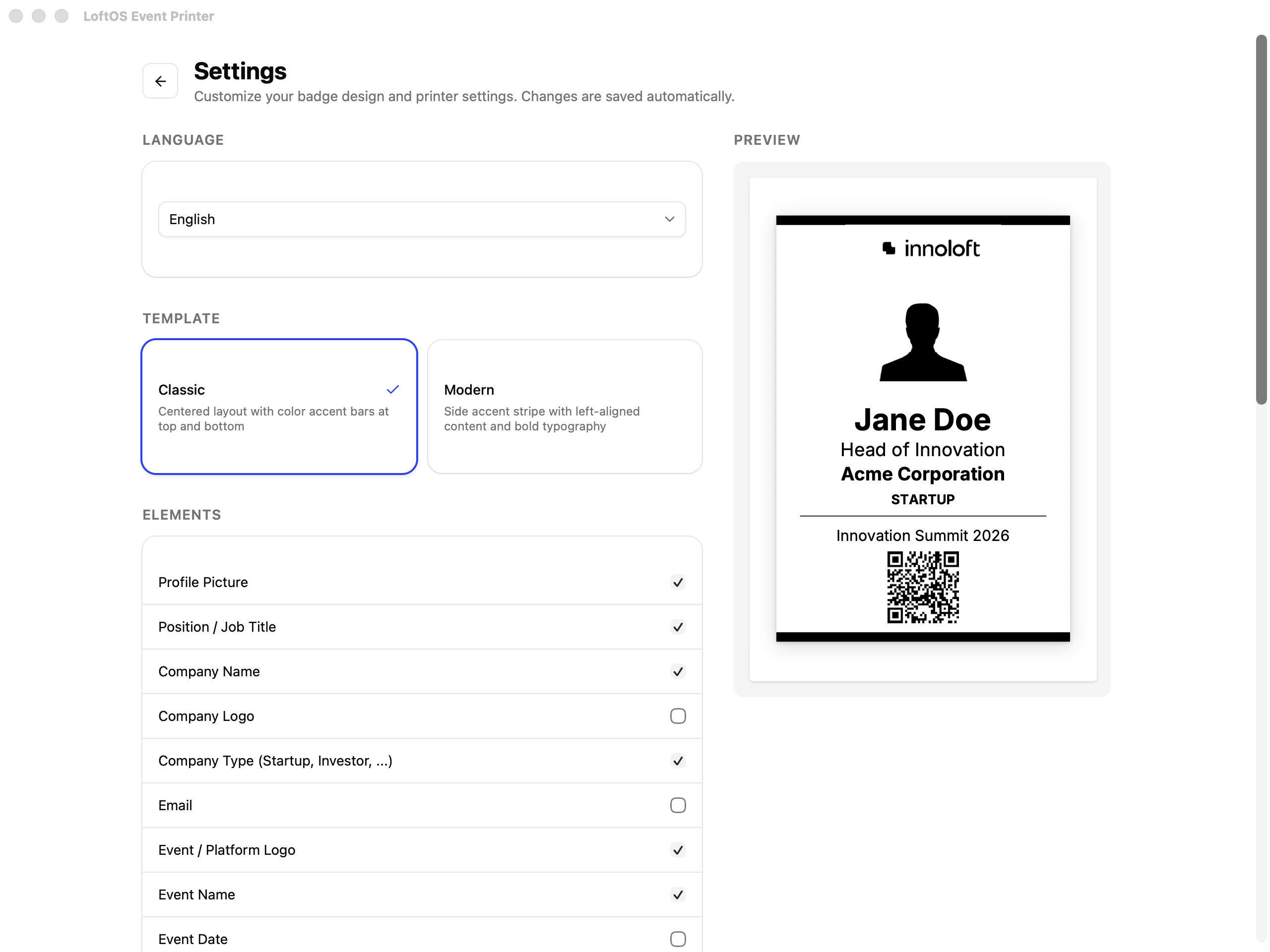
Open Settings from the top-right of the Events list or participant list. A live preview on the right shows exactly how your badge will look as you change things. Everything you change is saved automatically — no Save button needed.
Language
Switch the app between English and Deutsch. This also sets the language used for text on the badge (e.g. date formatting context).
Template
Choose the overall badge layout:
- Classic — centered layout with colored accent bars across the top and bottom.
- Modern — a colored accent stripe down the side, with left-aligned text and bold typography.
Elements (What Shows on the Badge)
Tick or untick each piece of information. Defaults are noted in brackets:
| Element | Default | Shows… |
|---|---|---|
| Profile Picture | On | The attendee's photo |
| Position / Job Title | On | e.g. "Head of Innovation" |
| Company Name | On | The attendee's organization name |
| Company Logo | Off | The organization's logo |
| Company Type | On | e.g. "Startup", "Investor" |
| Off | The attendee's email address | |
| Event / Platform Logo | On | Your event logo (or platform logo as fallback) |
| Event Name | On | The event's name |
| Event Date | On | The event date(s) |
| QR Code | On | A QR code on the badge |
💡 Personalization override: When a scanned ticket carries a personalization that differs from the attendee's name, that badge automatically shows the personalization and hides Profile Picture, Position, and QR Code — regardless of the toggles above.
Date Format
Choose how the event date is printed:
15.06.2026(German)06/15/2026(US)2026-06-15(ISO)15 Jun 2026(International)
Printer Settings
This section controls where and how badges print.
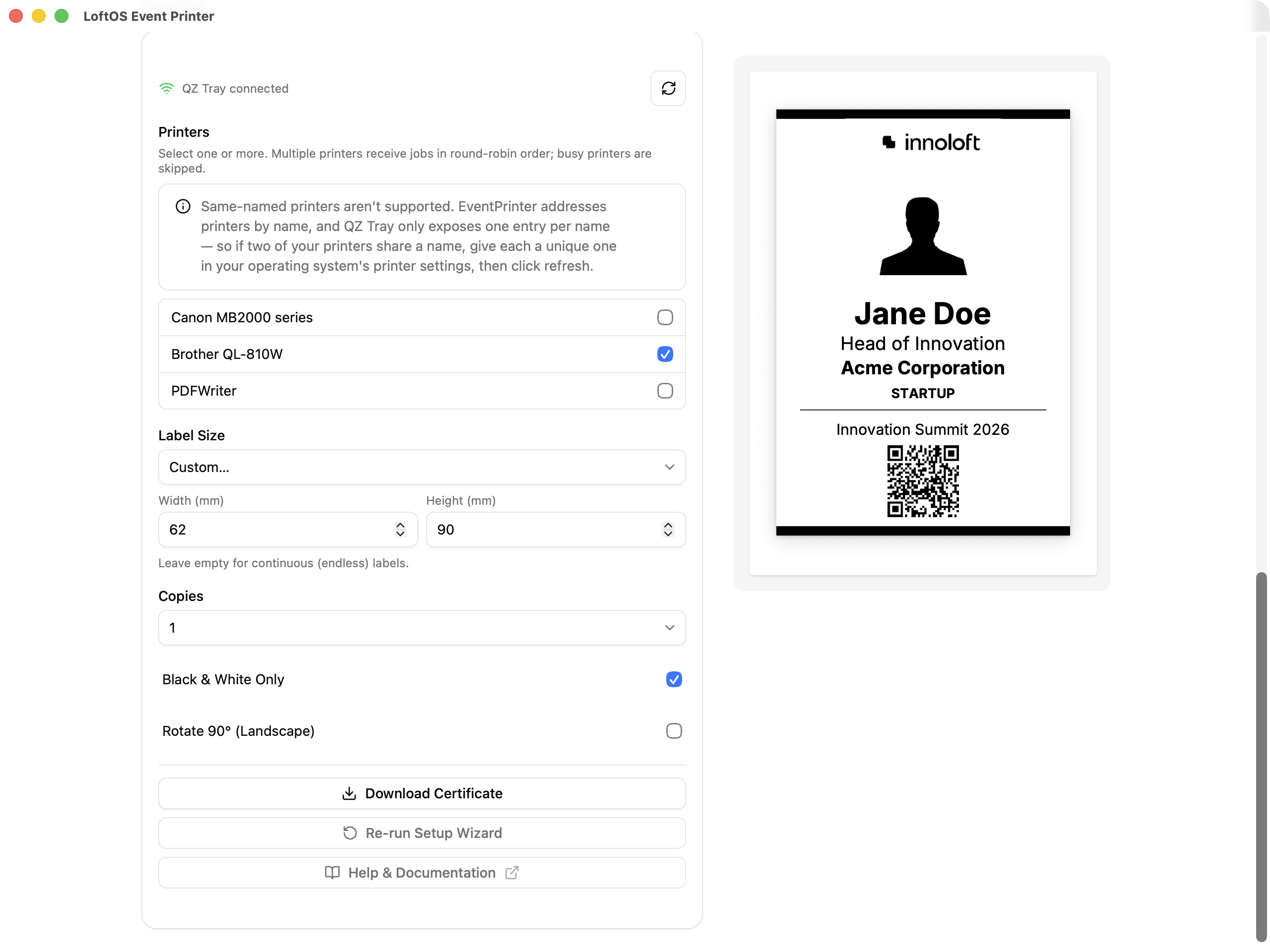
QZ Tray status — shows QZ Tray connected (silent printing ready) or QZ Tray not detected — will use print dialog. Use the refresh (↻) button to re-check after starting QZ Tray or plugging in a printer.
Choosing printers
Tick one or more printers from the list.
- If no printer is selected, printing opens your computer's PDF viewer instead of printing silently.
- If a previously selected printer is no longer connected, it appears crossed out and marked "not connected" — it's skipped while printing. Untick it to clean up the list.
⚠️ Same-named printers aren't supported. Give each printer a unique name in your operating system's printer settings, then refresh.
Using multiple printers
If you select more than one printer, a Strategy option appears:
- Round Robin (default) — each badge prints on the next printer in turn, and any printer that's currently busy is skipped. Best for high throughput — e.g. a long queue where you want labels coming out as fast as possible across several printers.
- Duplicate Print — every badge is sent to all selected printers at once. Useful for staffing multiple check-in stations with identical labels, or for redundancy.
Label Size
Pick the size of the labels loaded in your printer. Built-in presets (common Brother QL sizes, including those used by our recommended Brother QL-810W / QL-810Wc):
| Label | Width | Height |
|---|---|---|
| 62mm × 100mm | 62 mm | 100 mm |
| 62mm × 29mm | 62 mm | 29 mm |
| 62mm continuous | 62 mm | endless roll |
| 54mm × 100mm | 54 mm | 100 mm |
| 38mm × 90mm | 38 mm | 90 mm |
| 29mm × 90mm | 29 mm | 90 mm |
| 29mm × 62mm | 29 mm | 62 mm |
| 29mm continuous | 29 mm | endless roll |
| 102mm × 152mm | 102 mm | 152 mm |
| 102mm × 51mm | 102 mm | 51 mm |
Need a size that isn't listed? Choose Custom… and type the Width (mm) and Height (mm). Leave Height empty for continuous (endless) labels.
💡 Match this setting to the labels physically loaded in your printer. A mismatch is the most common reason a badge prints too small, cut off, or off-center.
Other printer options
- Copies — print 1 to 5 copies of each badge.
- Black & White Only — print without color (handy for monochrome label printers or to save on color).
- Rotate 90° (Landscape) — rotate the badge to landscape. Use this if your label is wider than it is tall and the content comes out sideways.
Maintenance buttons
- Download Certificate — re-download the QZ Tray trust certificate if you ever need to re-authorize (e.g. on a new computer).
- Re-run Setup Wizard — start the 3-step printer setup again from the beginning.
🛜 Working Offline
The app keeps a local copy of your last-loaded events, participants, and platform colors. If your internet drops:
- You'll see an Offline indicator, and a note: "Offline — showing cached data."
- You can still browse and print badges manually for participants that were already loaded.
- Scan-to-Print is disabled until you're back online.
When the connection returns, the app automatically refreshes with live data.
🥇 Event-Day Best Practices
- Set everything up the day before. Install the app, install QZ Tray, import the certificate, select your printer, and do a test print well ahead of time. Don't leave it to the morning of the event.
- Do a real test print of a sample attendee and check the size, colors, and that nothing is cut off. Adjust Label Size / Rotate until it's perfect.
- Load the participant list while online before doors open, so manual printing keeps working even if Wi-Fi gets shaky.
- For self-service entrances, turn on Scan-to-Print and leave the laptop + printer untouched with the window open.
- For staffed desks, use Search + the quick printer icon for the fastest manual workflow.
- Keep a "Manual Badge" plan for walk-ins, press, and VIPs who aren't registered.
- Busy event? Add a second printer and use Round Robin so labels keep flowing even while one printer is mid-print.
- Stock spare label rolls and keep the printer plugged into power, not just battery.
🛠️ Troubleshooting
The app can't find my printer
- Make sure the printer is connected and switched on.
- Make sure QZ Tray is running (icon in menu bar / system tray).
- In Settings, click the refresh (↻) button next to the QZ Tray status.
- If two printers share a name, rename them to be unique in your OS settings, then refresh.
Badges open in a PDF viewer instead of printing
This means silent printing isn't active. Either no printer is selected in Settings, or QZ Tray isn't connected. Open Settings, confirm QZ Tray connected, and tick a printer. If QZ Tray won't connect, re-do the certificate step.
"QZ Tray not detected" even though it's installed
- Confirm QZ Tray is actually running (start it from your applications if needed).
- Confirm you imported the certificate via Advanced → Site Manager in QZ Tray.
- Click Test Connection / Retry Connection, or the refresh button in Settings.
Scan-to-Print isn't printing anything
- Check you're online (the button is disabled when offline).
- Confirm a printer is set up with QZ Tray — Scan-to-Print can't use the PDF-viewer fallback.
- Confirm tickets are actually being scanned through the platform (the scan must be recorded server-side).
- Remember it only prints for new scans after you switched the feature on, and the window must stay open.
The badge prints too small, cut off, or sideways
- Set the correct Label Size to match the labels in your printer (or enter a Custom size).
- If content is rotated wrongly, toggle Rotate 90° (Landscape).
Images / logo / QR code look blurry
The app already prints at high resolution. If badges still look soft, check that your printer's own driver settings aren't downscaling, and that you selected the correct label size.
I can't see my event
You're probably not set as an organizer on that event. Ask the event's manager to add you as an organizer on the platform, then refresh.
"Session expired"
Your login timed out. Simply log in again.
❓ FAQs
Do I need to be an organizer?
Yes. The app only shows events where your account is an organizer. If your event isn't listed, you haven't been added as an organizer yet.
Is QZ Tray required?
For automatic Scan-to-Print, yes. For manual printing it's strongly recommended — without it, each badge opens in your PDF viewer for you to print by hand.
Does it cost anything?
QZ Tray is free, and the Event Printer app is provided as part of your LoftOS setup — use the download links above.
Can I use it offline?
Partly. Already-loaded events and participants can be browsed and printed manually offline, but logging in, loading new data, and Scan-to-Print all need internet.
What printers work?
Any printer your computer recognizes. The app is optimized for common Brother QL label sizes, and you can enter a custom size for anything else.
Can I print on more than one printer at once?
Yes. Select multiple printers in Settings and choose Round Robin (spread jobs for speed) or Duplicate Print (same badge to every printer).
Can I print a badge for someone who isn't registered?
Yes — use Manual Badge to type in their details and print a one-off badge.
How do I change what appears on the badge?
In Settings, use the Template, Elements toggles, Date Format, and printer options. The live preview updates as you go and changes save automatically.
Will it print a badge twice for the same person during Scan-to-Print?
No. The app snapshots who's already checked in when you enable the feature and only prints for new scans afterward.
Which platforms does the app run on?
Windows, macOS (Apple Silicon), and Linux.