Innoloft IconLoftOS Knowledge Base
🧩 LoftOS Modules & Features

✍️ Custom Modules

Custom Modules

Custom Modules allow you to create flexible, tailored content structures for your platform. Build modules that match your specific needsβ€”from job boards and resource libraries to portfolios and idea competitionsβ€”all with the same powerful features as built-in modules like Organizations and Events.

What are Custom Modules?

Custom Modules are configurable content containers that let you:

  • Define your own data structure with custom fields (attributes)
  • Organize content into sections
  • Control who can view and edit content
  • Display content in multiple views (cards, lists, maps, tables)
  • Collect submissions through forms
  • Import content from RSS feeds
  • Get help from an AI assistant that understands your module's content

Key Concepts

  • Module: The container that defines the structure and settings
  • Entity/Entry: Individual items within a module (like a job posting or resource)
  • Section: A group of related fields within an entry
  • Attribute: A field type (text, date, file upload, etc.)
  • Form: A submission form attached to entries
  • Label: Tags for categorizing and filtering entries

Getting Started

Creating Your First Module

Navigate to Admin β†’ Modules and click "+ Module" to begin.

Choose Your Creation Method

You have three options for creating a module:

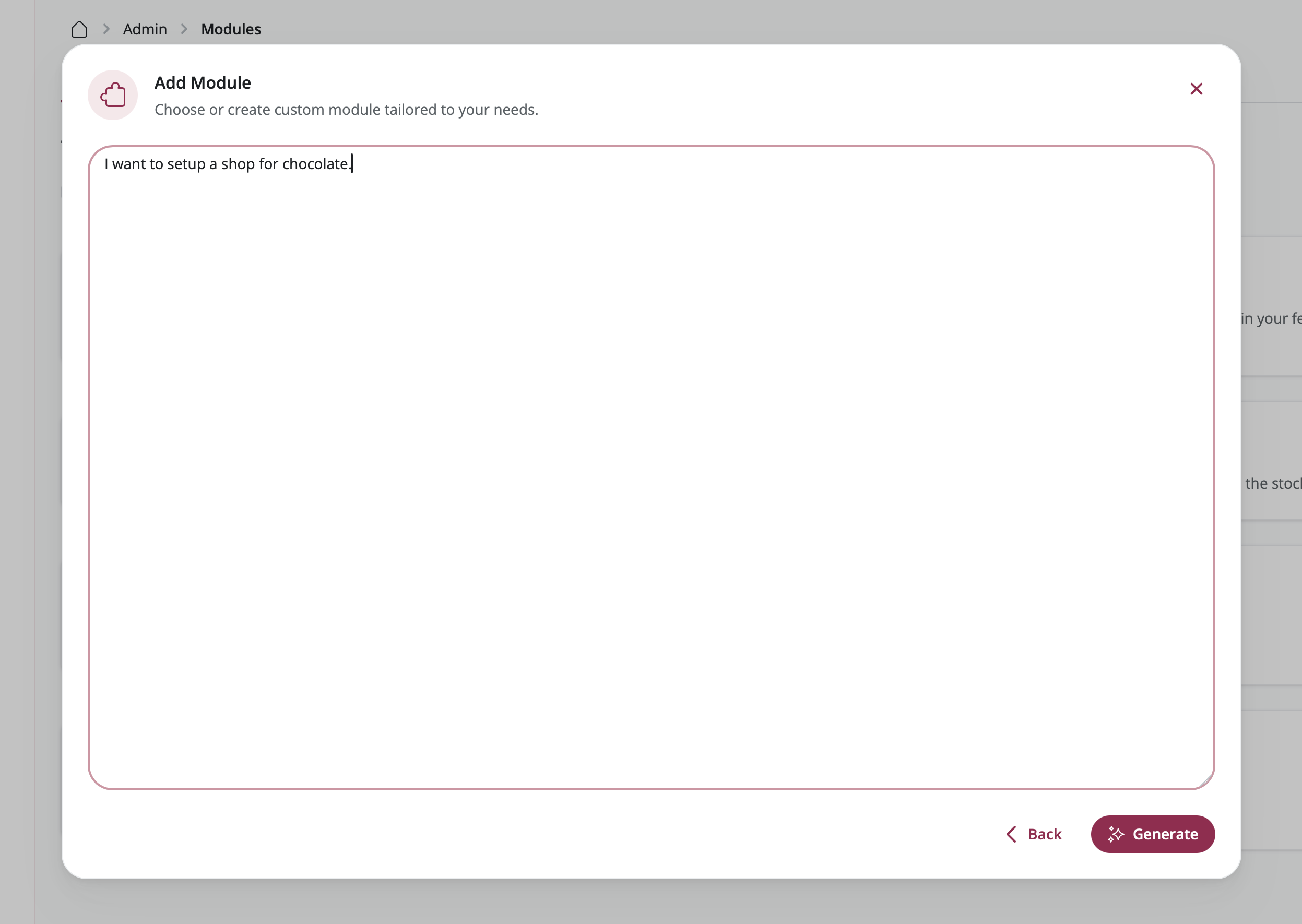
Have artificial intelligence create a ready-to-use module structure for you. Simply describe what you need in plain language, and the AI will build the complete module with appropriate fields and settings.

Steps:

  1. Select "AI Builder" from the build mode picker
  2. Describe your module in everyday language
    • Example: "A job board for tech positions"
    • Example: "A resource library for research papers"
  3. Review what the AI created for you
  4. Make any adjustments you'd like
  5. Save your module

2. Template-Based Module

Start with a ready-made template designed for common scenarios like job boards, forums, or resource libraries. Templates come pre-configured with all the fields and settings you typically need.

Steps:

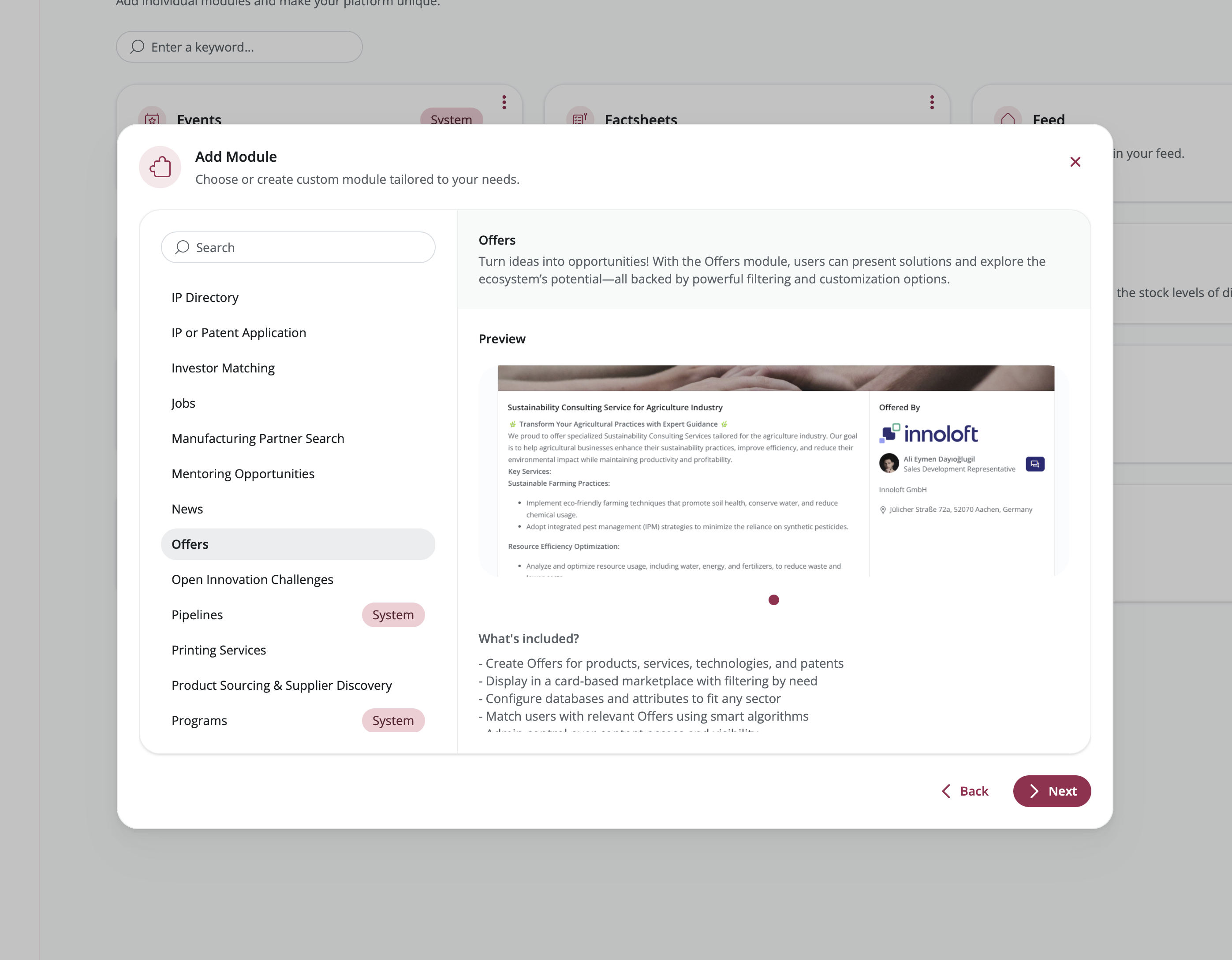
  1. Select "Template" from the build mode picker
  2. Browse available templates (Job Board, Forum, Resource Library, etc.)
  3. Choose the template that best fits your purpose
  4. Adjust the settings to match your specific needs
  5. Save your module

3. Blank Module

Build your module from the ground up with complete control over every detail. This option gives you maximum flexibility to create exactly what you envision.

Steps:

  1. Select "Blank" from the build mode picker
  2. Enter basic information:
    • Name: What your module will be called
    • Description: A brief explanation of its purpose
    • Icon: Pick a visual symbol from the icon library
    • Images: Upload a header image and thumbnail
  3. Configure additional options:
    • Color: Choose a theme color for your module
    • Display in Feed: Make entries appear in the main platform feed
    • Enable Group Connections: Allow entries to be linked with groups
  4. Save your module

Module Configuration

Access module configuration by selecting your module from Admin β†’ Modules and clicking on it.

Content Tab

Manage all entries within your module.

Viewing Entries

The Content tab displays a table of all entries with:

  • Entry name and description
  • Owner information
  • Creation and update dates
  • Blocked status
  • Quick actions (view, edit, delete)

Features:

  • Search: Find entries by name or owner
  • Filter: Use column filters to narrow results
  • Sort: Click column headers to sort
  • Export: Download entry data as CSV
  • Column Visibility: Show/hide specific columns

Adding Entries

Click "+ Entry" in the top right corner to create a new entry.

You can also:

  • Import Data: Upload CSV files with bulk entry data
  • RSS Import: Automatically import entries from RSS feeds

Managing Entries

View Entry: Click the eye icon to see the entry as users see it

Edit Entry: Click the pencil icon to modify entry content

Delete Entry: Click the trash icon to permanently remove an entry

Block/Unblock Entry: Control entry visibility for specific organizations

  • Click the block icon to prevent organizations from seeing this entry
  • Add a block reason and custom message
  • Unblock to restore visibility

RSS Import

Import content automatically from RSS feeds.

Steps:

  1. Click "+ RSS Import" in the Content tab
  2. Enter the RSS feed URL
  3. Configure import settings:
    • Update frequency
    • Field mapping
  4. Save the RSS import

Image Support: RSS feeds can include images using:

  • <enclosure> tag
  • <media:content> tag
  • <img> tag in CDATA description

Data Export

Export entry data for analysis or backup.

Steps:

  1. Apply any filters you want
  2. Select visible columns
  3. Click the Export button
  4. Download the CSV file

The export includes all visible columns and respects current filters and sorting.


Editor Tab

Configure the structure and content of your module entries.

Understanding Sections

Sections are like containers that group related information together on an entry. Think of them as different chapters or categories within each entry.

Section Types:

  1. Blank Section: Add your own custom fields (text boxes, dropdown menus, etc.)
  2. Content Blocks: Areas for formatted text and images
  3. Documents: Places where users can upload files
  4. Platform Content: Connections to other content on your platform (members, organizations, other modules)

Adding Sections

Steps:

  1. Click "+ Section" at the bottom of the page
  2. Choose what type of section you want from the library
  3. Set up the section:
    • Name: Give your section a clear title
    • Description: Add helpful instructions for users filling out this section
    • Required: Check this if users must complete this section
    • Package Permissions: Choose which user groups can see or edit this section
  4. Save the section

Organizing Sections

Reorder Sections: Click and drag sections up or down to change the order they appear in

Edit Section: Click on any section to open its settings in the right-side panel

Delete Section: Remove sections that you no longer need

Working with Attributes

Attributes are the individual input fields within sectionsβ€”like text boxes, dropdown menus, or date pickers.

Adding Attributes to Sections

Steps:

  1. Click on the section where you want to add a field
  2. Click "+ Element" β†’ Attribute
  3. Either pick an existing attribute from the library or create a new one
  4. Customize how this attribute appears in your module:
    • Name Override: Change the label shown to users (just for this module)
    • Description Override: Add or change the help text
    • Placeholder Override: Customize the example text shown in empty fields
    • Required: Check this to make the field mandatory
    • Order: Set where this field appears within the section
  5. Save the attribute

Creating New Attributes

Steps:

  1. Click "+ Element" β†’ Attribute
  2. Choose attribute type (see Attribute Types below)
  3. Configure the attribute:
    • Name: Attribute identifier
    • Description: Help text
    • Type-specific settings: Varies by attribute type
  4. Save the attribute

The attribute is now available in the Attribute Library for reuse in other modules.

Header Section

Every module has a special Header section that appears at the very top of each entry, like a cover page.

Header Configuration:

  • Variant: Choose how the header looks
    • Article: Image appears above the text (like a blog post)
    • Marketplace: Image appears on the left side with text on the right (like a product listing)
  • Use Address as Header: Show a map instead of an image (only works if you have an Address field)
  • Contact Person: Choose whether to display the entry owner's contact information

Adding Interactions

Interactions are action buttons that let users do something with an entry, like submitting an application or visiting a website.

Types:

  • Form: Add a button that opens a form for users to fill out and submit
  • External Link: Add a button that takes users to an external website

Adding a Form Interaction

Steps:

  1. Click on the Header section or any other section where you want the button
  2. Click "+ Element" β†’ "Interaction"
  3. Choose "Form"
  4. Pick an existing form template or create a new one
  5. Customize the button:
    • Button Label: What text appears on the button
    • Button Icon: Choose an icon to display
    • Button Style: Select the button's visual style
    • Deadline: Optionally set a date when submissions close
    • Enable Acceptance Workflow: Turn this on if you want to manually approve or reject submissions
  6. Save the interaction

Steps:

  1. Click on the section where you want the link button
  2. Click "+ Element" β†’ "Interaction"
  3. Choose "External Link"
  4. Set up the link:
    • URL: The web address where the button should take users
    • Button Label: What text appears on the button
    • Button Icon: Choose an icon to display
    • Description: Add extra information about where the link goes
  5. Save the interaction

Attributes Tab

Manage your attribute library and see where attributes are used.

Attribute Library Overview

The Attributes tab displays all the fields available on your platform. Attributes are shared resourcesβ€”create them once and use them in any module.

Features:

  • Search: Quickly find attributes by typing their name
  • Filter by Type: Show only certain types of fields (like text fields or date pickers)
  • Filter by Usage: View all attributes or just the ones used in this specific module
  • Usage Indicator: See how many times each attribute is being used across your platform

Creating Attributes

Steps:

  1. Click "+ Attribute" at the bottom of the page
  2. Select what type of field you want to create
  3. Fill in the attribute details (see Attribute Types Reference below for options)
  4. Save the attribute

Editing Attributes

Steps:

  1. Click on an attribute to open its details
  2. Make your changes in the right-side panel
  3. Save your changes

Important: When you edit an attribute, the changes apply everywhere it's used. If you only want to change how it appears in one module, use the section-level overrides instead.

Deleting Attributes

You can only delete attributes that aren't being used anywhere on your platform.

Steps:

  1. Click on an attribute that shows "0 x in use"
  2. Click Delete in the right-side panel
  3. Confirm that you want to delete it

Layout Tab

Customize how entries appear in different views.

General Settings

Database Views: Turn different viewing options on or off

  • Card View: Display entries as visual cards in a grid, showing images and key details
  • List View: Show entries in a compact list format with essential information
  • Map View: Display entries on an interactive map (only works if entries have addresses)
  • Table View: Present entries in a spreadsheet-like table
  • Feed View: Show entries in a scrolling feed, similar to social media

Layout Style: Select the overall look and feel for your module

Card Layout

Design how entry cards look when displayed in the card view.

Card Editor Features:

  • Add Elements: Drag fields, labels, and system information onto the card preview
  • Rearrange Elements: Drag elements up or down to change their order
  • Image Variant: Choose how images are displayed
    • Contain: Show the entire image with space around it
    • Cover: Fill the card space (may crop parts of the image)
    • Blur: Show a blurred background with the image centered on top

What You Can Add to Cards:

  • System information (entry name, description, owner, creation date)
  • Text-based fields that you've added to your module
  • Label tags

Steps:

  1. Open the Layout tab
  2. Click on the Card section
  3. Drag elements from the right panel onto the card preview
  4. Rearrange elements by dragging them
  5. Select your preferred image variant
  6. Save your changes

Header Tag Settings

Set up small tags or badges that appear at the top of entries.

Options:

  • Choose which labels should appear as tags in the header
  • Display submission deadlines for forms
  • Customize how tags look (colors, style)

Map Settings

Customize how the map view works (only available if you've enabled Map view).

Options:

  • Select which address field to use for placing markers on the map
  • Set how zoomed in the map should be by default
  • Turn on marker clustering (groups nearby markers together when zoomed out)

Table Settings

Customize the spreadsheet-style table view (only available if you've enabled Table view).

Options:

  • Choose which columns (fields) to show in the table
  • Adjust how wide each column should be
  • Set which column the table sorts by automatically

Settings Tab

Control module behavior, access, and content restrictions.

General Settings

Module Status:

  • Active: The module is live and visible to users
  • Draft: The module is hidden from everyone except administrators

Contact Person:

  • Show: Display the entry owner's contact information on entries
  • Hide: Keep the owner's contact information private

Keyword Filter:

  • Enabled: Users can search entries using keywords
  • Disabled: Hide the keyword search box

Allow Non-Admin RSS Imports:

  • Enabled: Any user can set up automatic imports from RSS feeds
  • Disabled: Only administrators can create RSS imports

Access Control

Control who can see and work with your module based on their user role (membership level).

Permission Levels:

  • Read: Users can view and browse entries
  • Write: Users can create new entries and edit their own

Steps:

  1. Open the Settings tab
  2. Click on the Access section
  3. For each user role, check the boxes for Read and/or Write access
  4. Save your changes

Restrictions

Filter which entries are shown to users based on different criteria. This helps you create focused, relevant views.

Organization Type Restrictions

Show only entries from certain types of organizations (like startups, corporations, or universities).

Steps:

  1. Open Settings β†’ Restrictions
  2. Choose which organization types should be included
  3. Save your changes

Users will only see entries from the organization types you selected.

Organization Name Restrictions

Show only entries from specific organizations that you name.

Steps:

  1. Open Settings β†’ Restrictions
  2. Type in the names of organizations whose entries should be shown
  3. Save your changes

Label-Based Restrictions

Show only entries that have certain labels or tags.

Steps:

  1. Open Settings β†’ Restrictions
  2. Choose which label groups and specific labels entries must have
  3. Save your changes

Creation Date Restrictions

Display only entries created within a certain time period, automatically hiding older content.

Steps:

  1. Open Settings β†’ Restrictions
  2. Set how far back to show entries (e.g., only entries from the last 6 months)
  3. Save your changes

Entries created before your specified time period will be automatically hidden from view.

Custom Attribute Restrictions

Show only entries where a specific field has certain values.

Steps:

  1. Open Settings β†’ Restrictions
  2. Choose which field (attribute) to filter by
  3. Select which values are allowed
  4. Save your changes

Filters

Give users tools to narrow down and find specific entries they're looking for.

Available Filters:

  • Attribute-based filters (for each field in your module)
  • Label/tag filters
  • Date range filters
  • Organization filters

Steps:

  1. Open Settings β†’ Filters
  2. Turn filters on or off using the toggles
  3. Set up how each filter works
  4. Choose which filters are always visible (main filters)
  5. Save your changes

Forms Tab

Create and manage form templates for collecting submissions for your module.

Form Templates Overview

Form templates define the questions users answer when submitting through an interaction.

Features:

  • Reusable across multiple modules
  • Support various question types
  • Connect to Pipelines for workflow management
  • Track submission status

Creating Form Templates

Steps:

  1. Click "+ Form" at the bottom
  2. Enter form details:
    • Title: Form name
    • Description: Form purpose
  3. Save the form template

Adding Questions

Steps:

  1. Select a form template
  2. Click "+ Question"
  3. Choose question type:
    • Text (short answer)
    • Textarea (long answer)
    • Single Choice
    • Multiple Choice
    • File Upload
    • Date
  4. Configure question settings:
    • Question Text: What you're asking
    • Description: Additional context
    • Required: Make question mandatory
    • Options: For choice questions
  5. Save the question

Organizing Questions

Reorder Questions: Drag and drop to change question order

Edit Question: Click on a question to modify settings

Delete Question: Remove questions you no longer need

Managing Form Submissions

View and manage submissions in the module's Forms tab or connect to Pipelines for advanced workflow management.

Connecting to Pipelines:

  1. Go to the entry with form submissions
  2. Click the Pipeline icon
  3. Select "Connect to Pipeline"
  4. Choose a pipeline
  5. Submissions now appear as pipeline cards

Labels Tab

Create and manage label groups for categorizing entries.

Label Groups

Label groups are collections of related labels (tags) that can be applied to entries.

Features:

  • Shared across all modules
  • Used for filtering and restrictions
  • Can be displayed on entry cards or profiles

Creating Label Groups

Steps:

  1. Click "+ Label Group" at the bottom
  2. Enter label group details:
    • Name: Label group identifier
    • Description: Purpose of this label group
  3. Save the label group

Adding Labels

Steps:

  1. Select a label group
  2. Click "+ Label" in the right panel
  3. Enter label details:
    • Name: Label text
    • Color: Visual identifier
  4. Save the label

Organizing Labels

Edit Label: Click on a label to modify its name or color

Delete Label: Remove labels that are no longer needed

Reorder Labels: Drag and drop to change label order within a group

Label Visibility

Configure where labels appear:

  • Profile: Show on entry detail pages
  • Database: Show on entry cards in list/card views

Working with Entries

Browsing Entries

Access your module from the main navigation to browse entries.

View Options

Switch between different views using the view selector:

  • Card View: Visual grid layout
  • List View: Compact list
  • Map View: Geographic display
  • Table View: Data table
  • Feed View: Social media style

Filtering Entries

Use filters to narrow down entries:

Keyword Search: Enter search terms in the search box

Attribute Filters: Use filter dropdowns for specific attributes

Label Filters: Filter by labels

Date Filters: Filter by creation or update date

Clear Filters: Reset all filters to see all entries

Sorting Entries

Click column headers (in table view) or use sort options to reorder entries.


Creating Entries

Adding a New Entry

Steps:

  1. Navigate to your module
  2. Click "+ Entry"
  3. Fill out all sections:
    • Enter required information
    • Upload files and images
    • Select options from dropdowns
    • Add platform content links
  4. Save the entry

Entry Sections

Header Section: Basic information and main image

Custom Sections: Module-specific fields you configured

Content Blocks: Rich text and images

Documents: File attachments

Platform Content: Links to organizations, users, or other module entries

Tips for Creating Entries

  • Required Fields: Marked with an asterisk (*)
  • Rich Text: Use formatting toolbar for styled text
  • File Uploads: Drag and drop or click to browse
  • Platform Content: Search and select from existing content
  • Save Draft: Save incomplete entries to finish later

Managing Your Entries

My Entries Overview

Access your entries by clicking "My Entries" in the module.

Tabs:

  • Entries: All your created entries
  • Matches: Entries matched with you (if matchmaking enabled)
  • Submissions: Form submissions on your entries

Editing Entries

Steps:

  1. Go to My Entries
  2. Click the edit icon on an entry
  3. Modify any section
  4. Save changes

Entry Status

Active: Entry is visible to others

Draft: Entry is hidden from others

Toggle Status: Click the activation toggle in My Entries

Viewing Entry Analytics

See how your entry is performing:

  • View count
  • Interaction count
  • Match count (if applicable)
  • Submission count (if forms enabled)

Managing Matches

If matchmaking is enabled for your module:

View Matches: See who has matched with your entry

Review Details: See why your entry was matched

Contact Matches: Message matched users

Managing Form Submissions

View and respond to form submissions on your entries:

View Submissions: See all submitted forms

Review Details: Read submission content

Accept/Reject: Approve or decline submissions (if workflow enabled)

Connect to Pipeline: Move submissions to a pipeline for further processing


Interacting with Entries

Viewing Entry Details

Click on any entry to see its full details:

  • All sections and content
  • Contact information (if enabled)
  • Interaction buttons
  • Related content

Submitting Forms

If an entry has a form interaction:

Steps:

  1. Click the form button on the entry
  2. Fill out all questions
  3. Upload any required files
  4. Submit the form

After Submission:

  • Receive confirmation
  • Track submission status
  • Edit submission (if allowed)
  • View response (if provided)

If an entry has an external link interaction:

Steps:

  1. Click the link button on the entry
  2. You'll be directed to the external URL

Contacting Entry Owners

If contact information is enabled:

Steps:

  1. View the entry
  2. Find the contact section
  3. Click to send a message or view contact details

Advanced Features

AI Assistant

The AI Assistant is your intelligent helper that understands your module's content and can answer questions, provide insights, and help you work more efficiently with your entries.

Enabling AI Assistant

Steps:

  1. Edit your module settings
  2. Turn on AI Assistant
  3. Save changes

Using AI Assistant

Access: Click the AI icon in the module header to start a conversation

What the AI Assistant Can Do:

  • Answer Questions: Ask about specific entries or general information in your module
  • Generate Content: Get help writing descriptions, summaries, or other text for your entries
  • Provide Insights: Analyze patterns and trends across your module's entries
  • Offer Suggestions: Receive recommendations for improving your content or organization
  • Explain Data: Get clear explanations of complex information in your entries

The AI Assistant maintains conversation history, so you can have ongoing discussions and build on previous questions. Each module has its own AI conversations that focus specifically on that module's content.


Module Duplication

Make an exact copy of an existing module, including all its structure and settings. This is useful when you need a similar module without building it from scratch.

When to Duplicate

  • You need a similar module for a different purpose or audience
  • You want to test changes without affecting the original module
  • You're creating a template to reuse across your platform

Duplication Process

Steps:

  1. Go to Admin β†’ Modules
  2. Click the three-dot menu on the module you want to copy
  3. Select "Duplicate"
  4. Give your copy a new name
  5. Make any adjustments to the settings
  6. Save the duplicated module

What Gets Copied:

  • All sections and their fields (attributes)
  • How entries are displayed (layout configuration)
  • Access rules and content restrictions
  • Form templates for collecting submissions
  • Label categories and tags

What Doesn't Get Copied:

  • The actual entries and their content
  • RSS feed imports
  • User access permissions (these reset to default settings)

Module Integration

Adding to Navigation

Make your module accessible from the main navigation.

Steps:

  1. Go to Admin β†’ Design β†’ Navigation
  2. Click "+ Entry"
  3. Select "Custom Module" as target
  4. Choose your module
  5. Set navigation label and icon
  6. Save the navigation entry

Grouping Modules in Views

Combine multiple modules into a single database view.

Steps:

  1. Go to Admin β†’ Views
  2. Create or edit a view
  3. Add your custom modules to the view
  4. Configure view settings
  5. Save the view

Users can now browse entries from multiple modules in one place.

Using with Pipelines

Connect module entries to pipelines for workflow management.

Prerequisites:

  • Enable "Allow content from other modules" in Pipeline settings
  • Pipeline must have at least one column

Steps:

  1. View an entry
  2. Click the three-dot menu
  3. Select "Add to Pipeline"
  4. Choose a pipeline
  5. Entry appears as a pipeline card

Features:

  • Comment on entries
  • Use pipeline evaluations
  • Track entry progress
  • Collaborate with team

Notifications

Get automatic updates when important things happen in your module, so you never miss new content or activity.

Subscribing to Module Updates

Steps:

  1. Open your module
  2. Click the bell icon
  3. You'll now receive notifications for:
    • New entries added to the module
    • Changes made to existing entries
    • Form submissions from users
    • Comments and discussions

Managing Subscriptions

View Subscriptions: Review which modules you're following in your notification settings

Unsubscribe: Click the bell icon again to turn off notifications for this module


Blocking & Moderation

Control which users can see specific entries, helping you manage content quality and appropriateness for different audiences.

Blocking Entries for Organizations

Hide specific entries from certain organizations while keeping them visible to everyone else.

Steps:

  1. Go to Admin β†’ Modules β†’ [Your Module] β†’ Content
  2. Find the entry you want to restrict
  3. Click the block icon
  4. Choose which organizations should not see this entry
  5. Optionally, add a reason and custom message explaining why
  6. Save your changes

Result: The selected organizations won't see this entry in their view

Individual Entry Blocking

Hide an entry from all regular users across the platform.

Steps:

  1. Open the entry you want to block
  2. Click the three-dot menu
  3. Select "Block Entry"
  4. Add a reason and message (optional)
  5. Confirm the blocking

Result: Only administrators can see this entry; it's hidden from all other users

Unblocking Entries

Make a blocked entry visible again.

Steps:

  1. Find the blocked entry
  2. Click the unblock icon or select unblock from the menu
  3. Confirm you want to restore visibility

Result: The entry becomes visible again to users who have permission to see it


Attribute Types Reference

Text Attributes

Free Text

A simple text box for short, single-line answers like names or titles.

Best Used For:

  • Names and titles
  • Brief descriptions
  • Website addresses (URLs)
  • Short identifiers

What You Can Configure:

  • Placeholder: Show example text to guide users
  • Max Length: Limit how many characters can be entered
  • Validation: Optionally require specific formats (like email addresses)

Rich Text

A full text editor that allows formatting, similar to a word processor. Perfect for longer content that needs structure and styling.

Best Used For:

  • Detailed descriptions
  • Articles and blog posts
  • Instructions and guidelines
  • Any content that needs formatting

Formatting Options:

  • Make text bold, italic, or underlined
  • Create bulleted or numbered lists
  • Add clickable links
  • Use different heading sizes
  • Align text left, center, or right

Choice Attributes

Single Choice

Let users pick one option from a predefined list, like choosing a category or status.

Best Used For:

  • Selecting a category
  • Setting a status (like "Active" or "Completed")
  • Choosing a priority level
  • Picking a type or classification

What You Can Configure:

  • Options: The list of choices users can select from
  • Default Value: Which option is pre-selected
  • Display Style: Show as a dropdown menu or radio buttons

Multiple Choice

Allow users to select several options from a list, useful when more than one answer applies.

Best Used For:

  • Adding multiple tags
  • Listing skills or capabilities
  • Selecting features
  • Choosing multiple categories

What You Can Configure:

  • Options: The list of available choices
  • Min/Max Selections: Set limits on how many options can be selected
  • Display Style: Show as checkboxes or a multi-select dropdown

Numeric Attributes

Linear Scale

A rating system where users select a number on a scale, like rating something from 1 to 5 stars.

Best Used For:

  • Rating quality or satisfaction
  • Scoring items
  • Setting priority levels
  • Indicating difficulty or complexity

What You Can Configure:

  • Min Value: The lowest number on the scale
  • Max Value: The highest number on the scale
  • Step: How much the scale increases by (e.g., by 1s or 0.5s)
  • Labels: Descriptive text for the lowest and highest values (e.g., "Poor" to "Excellent")

File Attributes

File Upload

Let users attach documents and files to their entries.

Best Used For:

  • PDF documents
  • Word documents or spreadsheets
  • Presentations
  • Any type of file attachment

What You Can Configure:

  • Allowed Types: Restrict which file formats can be uploaded (e.g., only PDFs)
  • Max Size: Set a maximum file size limit
  • Multiple Files: Allow users to upload more than one file

Image Upload

Enable users to add pictures and visual content to their entries.

Best Used For:

  • Photos and images
  • Company logos
  • Screenshots
  • Diagrams and charts

What You Can Configure:

  • Max Size: Limit how large image files can be
  • Dimensions: Require specific width and height
  • Multiple Images: Allow uploading several images
  • Display Settings: Control how images are shown (full size, thumbnail, etc.)

Specialized Attributes

A field for website addresses that automatically validates the format and can display as a clickable link.

Best Used For:

  • Company websites
  • Social media profiles
  • External resources and references
  • Documentation or help links

What You Can Configure:

  • Validation: Automatically check that the entered text is a valid web address
  • Display: Show the link as clickable text
  • Open in New Tab: Choose whether links open in a new browser tab

Address

A location field that integrates with maps, making it easy to display entries geographically.

Best Used For:

  • Office or business locations
  • Event venues
  • Service coverage areas
  • Geographic market presence

What You Can Configure:

  • Multiple Addresses: Allow entering several locations
  • Format: Collect full street addresses or just city/state/country
  • Map Display: Show entries on an interactive map
  • Geocoding: Automatically convert addresses to map coordinates

Additional Capabilities:

  • Filter entries by city, state, or country
  • Restrict which locations can be shown
  • Search for entries near a specific location

Date

A calendar picker for selecting dates and times.

Best Used For:

  • Deadlines and due dates
  • Event dates and times
  • Publication or start dates
  • Validity periods (start and end dates)

What You Can Configure:

  • Format: Choose date only, date with time, just month, or just year
  • Range: Allow selecting a date range (start and end)
  • Min/Max: Limit which dates can be selected
  • Default: Pre-fill with today's date or another default

Additional Capabilities:

  • Automatically hide entries after a certain date
  • Filter entries by date ranges
  • Sort entries chronologically

Tree (Hierarchical Categories)

A multi-level category system where options are organized in a parent-child structure, like a family tree or folder system.

Best Used For:

  • Product or service categories with subcategories
  • Organizational hierarchies
  • Technology or industry classifications
  • Any nested categorization system

What You Can Configure:

  • Custom Tree: Create your own category hierarchy from scratch
  • Template: Use ready-made category trees (like the LoftOS Category Tree)
  • Multiple Selection: Let users choose several categories at once
  • Levels: Decide how many levels deep the hierarchy goes

How It Works:

  • Drag and drop categories to reorganize them
  • Click to expand or collapse category branches
  • Search to quickly find specific categories
  • Filter entries by their category selections

FAQs & Troubleshooting

Common Questions

Can I use the same attribute in multiple modules?

Yes! Attributes are shared across all modules. Create an attribute once and use it in as many modules as you need. Use section-level overrides to customize the attribute name, description, or placeholder for each module.

How do I change an attribute name in just one module?

Use attribute overrides:

  1. Go to the module's Editor tab
  2. Select the section containing the attribute
  3. Click on the attribute
  4. In the right panel, enter custom Name, Description, or Placeholder
  5. Save changes

This only affects how the attribute appears in this module.

Can I delete a module?

Yes, but be careful:

  1. Go to Admin β†’ Modules
  2. Click the three-dot menu on the module
  3. Select Delete
  4. Confirm deletion

Warning: This permanently deletes the module and all its entries. This action cannot be undone.

How do I make my module visible to users?

  1. Ensure the module is Active (not Draft) in Settings
  2. Add the module to your navigation (Admin β†’ Design β†’ Navigation)
  3. Set appropriate access permissions in the Settings tab
  4. Verify package permissions allow users to read the module

Can users create entries in my module?

Only if:

  1. The module is Active
  2. Users have Write permissions in the Settings β†’ Access section
  3. Their package includes Write access to Custom Modules
  4. The module is accessible via navigation or a view

How do I import existing data?

Use the CSV import feature:

  1. Go to Content tab
  2. Click "+ Entry" β†’ "Import Data"
  3. Download the template CSV
  4. Fill in your data following the template format
  5. Upload the completed CSV
  6. Review and confirm the import

Can I export my module configuration?

Module duplication effectively exports configuration:

  1. Duplicate the module
  2. The duplicate includes all configuration
  3. You can then modify or use it as a template

For data export, use the Export feature in the Content tab.

How do I restrict entries by location?

Use the Address attribute with restrictions:

  1. Add an Address attribute to your module
  2. Go to Settings β†’ Restrictions
  3. Add address-based restrictions
  4. Select allowed cities, states, or countries
  5. Save restrictions

Can I have multiple forms on one entry?

Yes! Add multiple form interactions:

  • In the Header section (one form)
  • In other sections (multiple forms)

Each form can collect different information and have different settings.

How do I connect form submissions to a pipeline?

  1. Ensure your pipeline allows content from other modules
  2. View the entry with submissions
  3. Click the Pipeline icon in the top right
  4. Select "Connect to Pipeline"
  5. Choose the pipeline
  6. Submissions appear as pipeline cards

What's the difference between Labels and Attributes?

Labels:

  • Simple tags for categorization
  • Can only be assigned by platform admins
  • Shared across all modules
  • Used for filtering and restrictions
  • Displayed as colored chips
  • Quick to add/remove

Attributes:

  • Structured data fields
  • Can be complex (dates, files, addresses)
  • Defined in module structure
  • Collected during entry creation
  • Used for detailed information

Can I change the module URL after creation?

Yes, but be careful:

  1. Edit the module settings
  2. Change the URL field
  3. Save changes

Warning: This breaks existing links to the module. Update your navigation and any external links.

How do I make entries appear in the platform feed?

  1. Edit module settings
  2. Enable "Display in Feed"
  3. Save changes

New entries will now appear in the platform feed alongside other content.

Can I use Custom Modules with Groups?

Yes! Enable group connections:

  1. Edit module settings
  2. Enable "Enable Group Connections"
  3. Save changes

Entries can now be associated with specific groups.


Troubleshooting

Entries are not appearing in my module

Check:

  1. Module Status: Is the module Active (not Draft)?
  2. Access Permissions: Do you have Read access?
  3. Restrictions: Are restrictions hiding the entries?
  4. Filters: Clear all filters to see all entries
  5. User Package: Does your package allow access?

I can't create entries

Check:

  1. Write Permissions: Do you have Write access in Settings β†’ Access?
  2. Package Permissions: Does your package allow Write access?
  3. Module Status: Is the module Active?
  4. Navigation: Is the module accessible from navigation?

Attributes are not showing in my section

Check:

  1. Attribute Added: Did you add the attribute to the section?
  2. Section Saved: Did you save the section after adding the attribute?
  3. Attribute Order: Is the attribute ordered correctly?
  4. Package Permissions: Does the section allow your package to view it?

Form submissions are not appearing

Check:

  1. Form Connected: Is the form properly connected to the interaction?
  2. Submission Successful: Did the user receive a confirmation?
  3. Pipeline Connection: If connected to pipeline, check the pipeline
  4. Permissions: Do you have access to view submissions?

RSS import is not working

Check:

  1. Valid URL: Is the RSS feed URL correct and accessible?
  2. Feed Format: Does the feed follow RSS standards?
  3. Import Settings: Are field mappings configured correctly?
  4. Permissions: Do you have permission to create RSS imports?
  5. Feed Content: Does the feed contain items?

Images are not displaying correctly

Check:

  1. Image Format: Use supported formats (JPG, PNG, WebP)
  2. File Size: Ensure images are within size limits
  3. Image Variant: Try different variants (Contain, Cover, Blur)
  4. Upload Success: Verify the image uploaded successfully
  5. Browser Cache: Clear cache and reload

Map view is not showing entries

Check:

  1. Address Attribute: Do entries have address data?
  2. Map Enabled: Is Map view enabled in Layout settings?
  3. Geocoding: Are addresses properly geocoded?
  4. Map Configuration: Is the correct address attribute selected?

Filters are not working

Check:

  1. Filters Enabled: Are filters enabled in Settings β†’ Filters?
  2. Attribute Data: Do entries have data for the filtered attribute?
  3. Filter Configuration: Are filter options configured correctly?
  4. Cache: Clear browser cache and reload

Export is not including all data

Check:

  1. Column Visibility: Are all desired columns visible?
  2. Filters Applied: Clear filters to export all entries
  3. Permissions: Do you have access to all entries?
  4. Export Settings: Verify export parameters

Best Practices

Module Design

Keep it Simple: Start with essential fields and add more as needed

Logical Sections: Group related fields together in sections

Clear Labels: Use descriptive names for attributes and sections

Required Fields: Only mark truly essential fields as required

Help Text: Add descriptions to guide users

Attribute Management

Reuse Attributes: Use existing attributes instead of creating duplicates

Consistent Naming: Use clear, consistent names across modules

Appropriate Types: Choose the right attribute type for your data

Validation: Set appropriate validation rules

Defaults: Provide sensible default values where applicable

Layout Optimization

Card Design: Include the most important information on cards

View Selection: Enable views that match how users will browse

Image Quality: Use high-quality images with appropriate dimensions

Mobile Friendly: Test layouts on mobile devices

Performance: Limit the number of elements on cards for better performance

Access Control

Principle of Least Privilege: Give users only the access they need

Package-Based: Use packages for broad access control

Restrictions: Use restrictions for fine-grained control

Regular Review: Periodically review and update permissions

Test Access: Test with different user roles to verify access

Content Management

Consistent Data: Encourage consistent data entry

Regular Cleanup: Remove outdated or duplicate entries

Moderation: Monitor and moderate content as needed

Backups: Regularly export data for backup

Documentation: Document your module structure for future reference

Performance

Optimize Images: Compress images before uploading

Limit Attributes: Don't add unnecessary attributes to cards

Use Restrictions: Reduce the number of visible entries with restrictions

Pagination: Use pagination for large datasets

Caching: Leverage browser caching for better performance

User Experience

Clear Navigation: Make modules easy to find

Intuitive Forms: Design forms that are easy to complete

Helpful Errors: Provide clear error messages

Feedback: Give users confirmation after actions

Search & Filter: Make it easy to find specific entries


Glossary

Attribute: A field type that defines what kind of data can be entered (text, date, file, etc.)

Entity: An individual item or entry within a module (also called "Entry")

Form Template: A reusable form definition with questions that can be attached to entries

Interaction: A button on an entry that triggers an action (form submission or external link)

Label: A tag used to categorize and filter entries

Label Group: A collection of related labels

Module: A container that defines the structure and settings for a type of content

RSS Import: Automatic import of content from an RSS feed

Section: A group of related fields within an entry

Restriction: A rule that limits which entries are visible to users

View: A way of displaying entries (card, list, map, table, feed)


Last updated: December 16, 2025

On this page

Custom ModulesWhat are Custom Modules?Key ConceptsGetting StartedCreating Your First ModuleChoose Your Creation Method1. AI Module Builder (Recommended for Quick Start)2. Template-Based Module3. Blank ModuleModule ConfigurationContent TabViewing EntriesAdding EntriesManaging EntriesRSS ImportData ExportEditor TabUnderstanding SectionsAdding SectionsOrganizing SectionsWorking with AttributesAdding Attributes to SectionsCreating New AttributesHeader SectionAdding InteractionsAdding a Form InteractionAdding an External Link InteractionAttributes TabAttribute Library OverviewCreating AttributesEditing AttributesDeleting AttributesLayout TabGeneral SettingsCard LayoutHeader Tag SettingsMap SettingsTable SettingsSettings TabGeneral SettingsAccess ControlRestrictionsOrganization Type RestrictionsOrganization Name RestrictionsLabel-Based RestrictionsCreation Date RestrictionsCustom Attribute RestrictionsFiltersForms TabForm Templates OverviewCreating Form TemplatesAdding QuestionsOrganizing QuestionsManaging Form SubmissionsLabels TabLabel GroupsCreating Label GroupsAdding LabelsOrganizing LabelsLabel VisibilityWorking with EntriesBrowsing EntriesView OptionsFiltering EntriesSorting EntriesCreating EntriesAdding a New EntryEntry SectionsTips for Creating EntriesManaging Your EntriesMy Entries OverviewEditing EntriesEntry StatusViewing Entry AnalyticsManaging MatchesManaging Form SubmissionsInteracting with EntriesViewing Entry DetailsSubmitting FormsFollowing External LinksContacting Entry OwnersAdvanced FeaturesAI AssistantEnabling AI AssistantUsing AI AssistantModule DuplicationWhen to DuplicateDuplication ProcessModule IntegrationAdding to NavigationGrouping Modules in ViewsUsing with PipelinesNotificationsSubscribing to Module UpdatesManaging SubscriptionsBlocking & ModerationBlocking Entries for OrganizationsIndividual Entry BlockingUnblocking EntriesAttribute Types ReferenceText AttributesFree TextRich TextChoice AttributesSingle ChoiceMultiple ChoiceNumeric AttributesLinear ScaleFile AttributesFile UploadImage UploadSpecialized AttributesLinkAddressDateTree (Hierarchical Categories)FAQs & TroubleshootingCommon QuestionsCan I use the same attribute in multiple modules?How do I change an attribute name in just one module?Can I delete a module?How do I make my module visible to users?Can users create entries in my module?How do I import existing data?Can I export my module configuration?How do I restrict entries by location?Can I have multiple forms on one entry?How do I connect form submissions to a pipeline?What's the difference between Labels and Attributes?Can I change the module URL after creation?How do I make entries appear in the platform feed?Can I use Custom Modules with Groups?TroubleshootingEntries are not appearing in my moduleI can't create entriesAttributes are not showing in my sectionForm submissions are not appearingRSS import is not workingImages are not displaying correctlyMap view is not showing entriesFilters are not workingExport is not including all dataBest PracticesModule DesignAttribute ManagementLayout OptimizationAccess ControlContent ManagementPerformanceUser ExperienceGlossary