 LoftOS Knowledge Base
💬 Chat
LoftOS platforms offer an integrated messaging system that allows users to connect with others in the network. In addition to private messages, users can participate in group chats and create collaborative spaces.
👩🏻💻 Usage
Write a Message
The chat widget at the bottom right of the platform provides quick access to your conversation history and the option to start new chats. You'll receive email notifications when new messages arrive. Alternatively, manage your conversations via the Messenger center.
Within the chat widget, you can view all private chats and group conversations with other platform users.
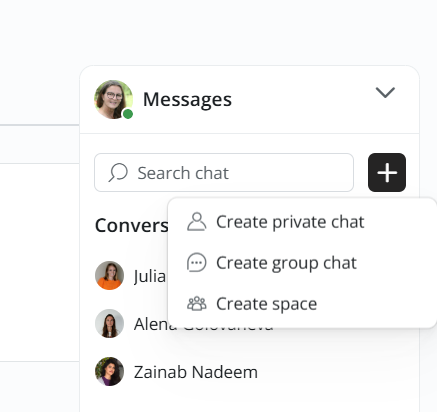
To start a new conversation, click “+” next to an existing chat or the chat room. Search for a user to send a direct message, initiate a group chat, or create a space.
Difference between Group Chat and Space
A Space offers more advanced collaboration features. It allows participants to create Threads—separate discussions within the Space that help structure topics and keep conversations organized. This makes Spaces particularly useful for more complex, topic-driven exchanges and collaborative work.
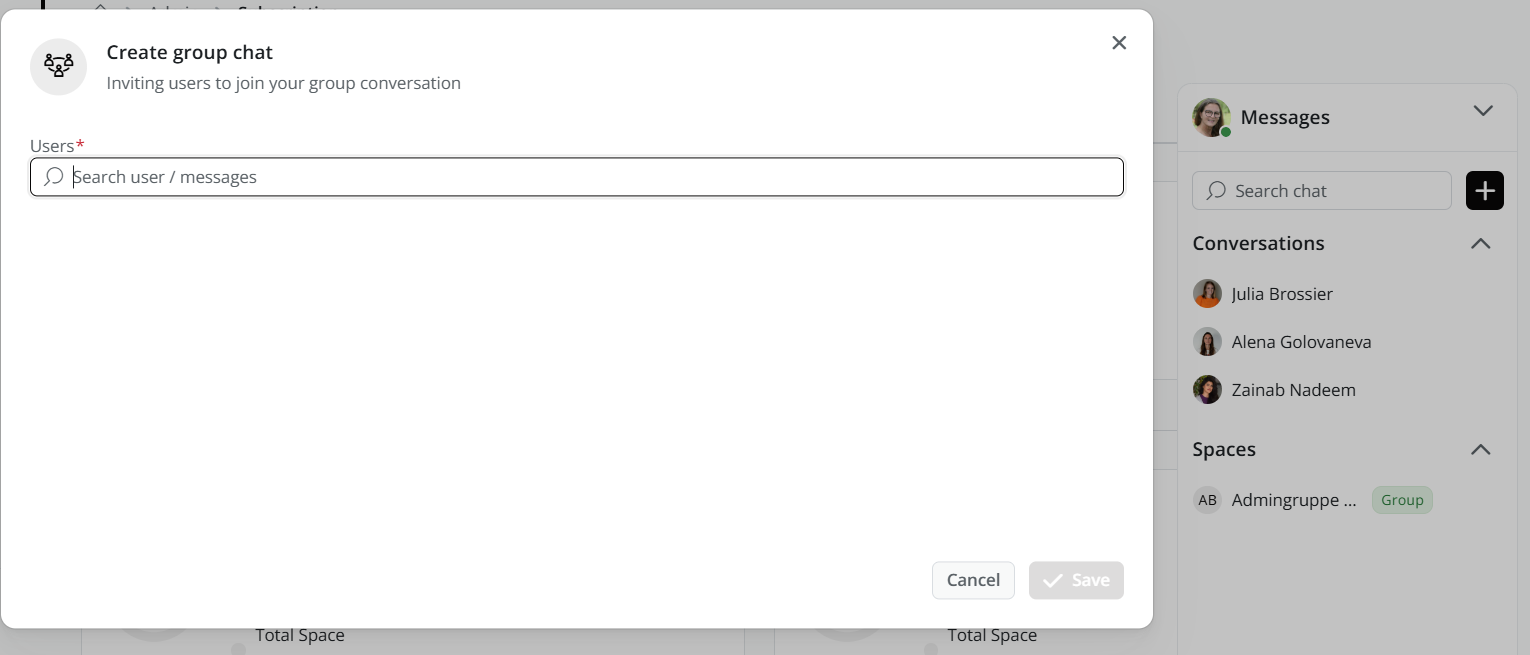
To create a group chat, search for users from the dropdown menu. As soon as a User becomes part of a Group, the Group Chat automatically appears as a visible element within the corresponding Space.
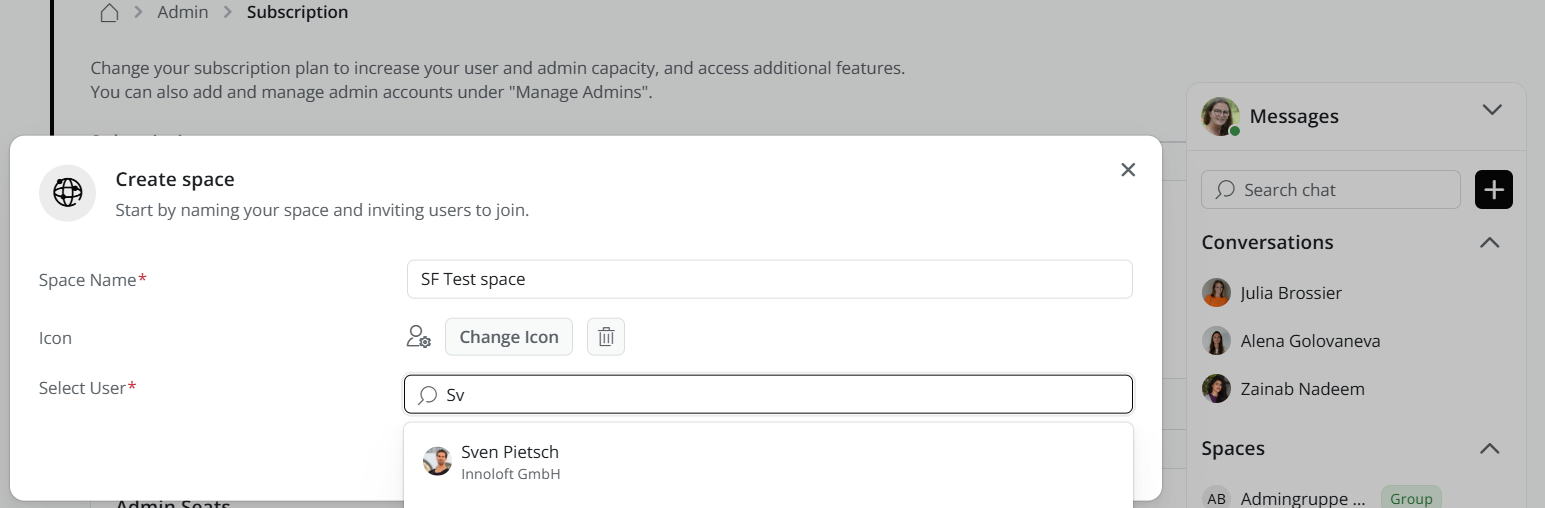
To create a space, enter a name, choose an icon from the dropdown menu, and select users to join the space.
Attach Files & Images
You can attach files to your messages in any chat type — direct chats, group chats, and spaces (including threads).
- Click the paperclip icon in the message input.
- Select up to 5 files (max. 50 MB each) — images, documents, or any other file type.
- Send your message as usual. A message can also consist of attachments only, without text.
Image attachments display as inline previews — click one to open it full-screen. Other files appear as compact chips with a file-type icon; click a chip to open or download the file.
Edit & Delete a Message
Edit or delete your message by hovering over the text and clicking the pencil icon to edit or the trash bin icon to delete.
Search for a user or see members of a space
Choose a space, open a group, or view members of a space.
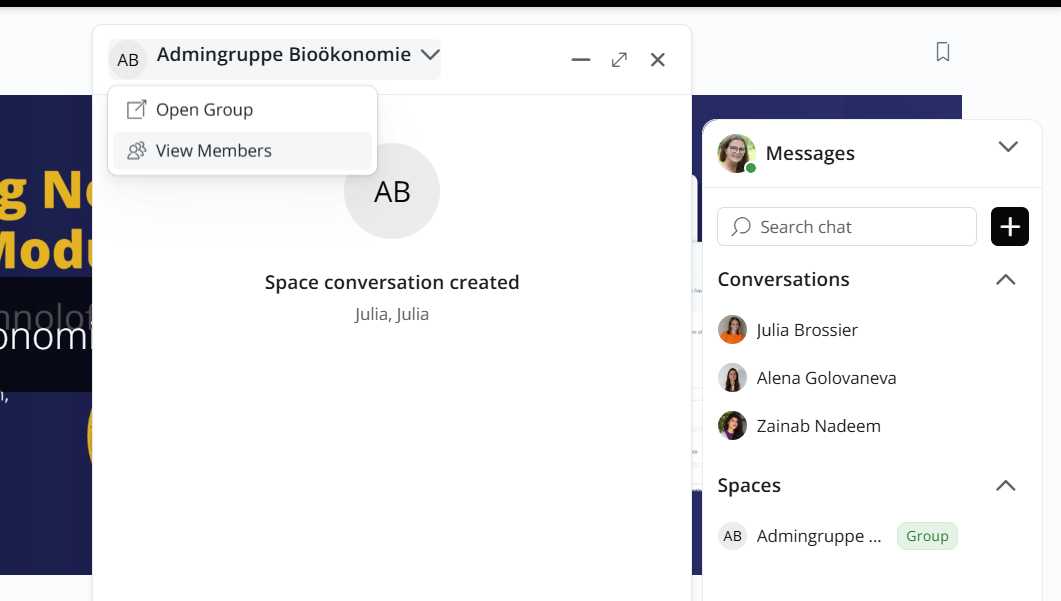
Identify the group associated with an incoming chat message
- Click the chat icon in the top bar, next to your profile picture.
- In the left-hand panel, select a space from the list.
- Spaces are labeled by type, such as Group or Programme, to help you understand their purpose.
- When you open a chat, you’ll see which group or space the conversation is linked to.