 LoftOS Knowledge Base
🔔 Notifications
The Notification Center enhances communication and User engagement on your platform. The notification system informs Users about recent platform activities. Notifications are received when a comment is posted, a meeting request is received, a card on a pipeline is moved, or a User’s organization has been liked.
Notifications are highlighted by a red button and a number beside the bell icon in the search bar, adjacent to your profile image.
👩🏻💻Usage Admin
Email Notifications: Notifications can also be sent directly to the User's email inbox, ensuring they never miss important updates. Set default notification preferences for specific modules, ensuring Users are informed of key updates unless they opt out.
👩🏽💻 Usage
How to Customize Your Notification Settings
Get the updates that really matter.
Key Benefits
- Centralized Control: Manage all notification types from a single page.
- Full Customization: Choose exactly which notifications you want to receive.
- Personalized Experience: Tailor notifications to your role, activity, and preferences.
Step-by-Step: Set Up Your Notification Preferences
-
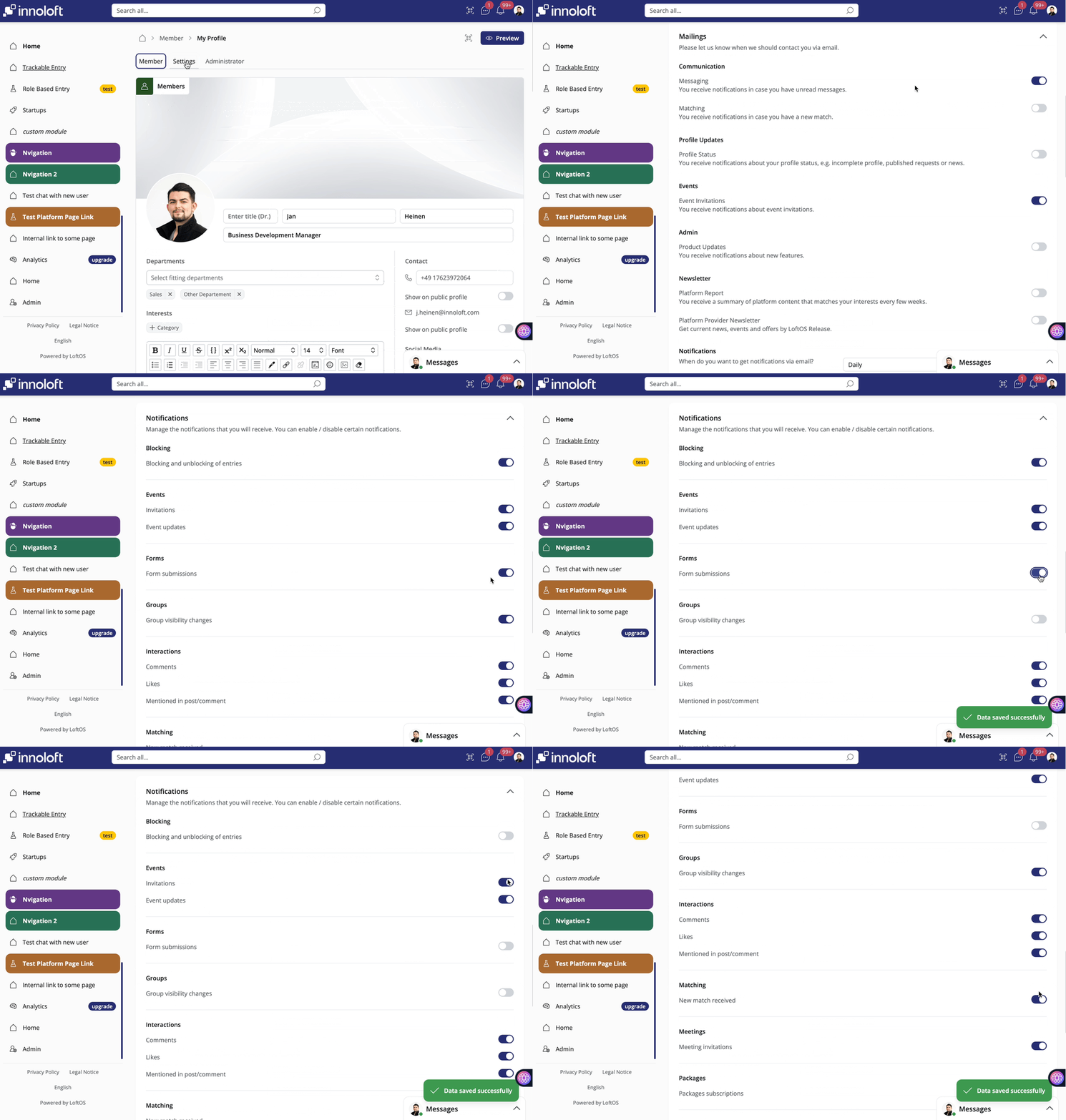
Go to Your Profile Settings
Click on your profile icon and select Settings.
-
Open the Notification Settings Section
In the menu, navigate to Notifications.
-
Review Your Notification Options
Browse through different notification categories such as messages, project updates, matching, meetings etc.
-
Enable or Disable Notifications
Use the available toggles to select which notifications you want to receive.
Real-Time Alerts: Notifications appear instantly in the Notification Bell. When someone comments on your post, the notification pops up in real time.
Subscribe to a Module with Filters
You can subscribe to a specific module and get notified only about the content that matters to you:
- Open the module's entry overview and click Subscribe.
- In the subscription dialog, optionally add filters on the module's attributes (e.g., only entries in a certain category or location).
- Save — you'll now be notified about new and updated entries that match your filters, and nothing else.
The subscription dialog offers every option configured on an attribute, not only the ones already used by existing entries. That means you can subscribe to a category or label before a single entry carries it, and be notified the moment the first one appears. Filters on the database overview itself continue to show only the options currently in use.
Your module subscriptions appear alongside your other notification preferences in Profile Settings → Notifications, where you can adjust or remove them at any time.
❓ FAQs
- How can I change the notification e-mail interval? Control how and when you receive notifications through your ”Settings” (e.g., immediately, daily, or weekly).
- How can I unsubscribe from the Newsletter mailing list? To unsubscribe from the newsletter mailing list, go to your Profile Settings, navigate to Notifications, and deselect the toggle next to Newsletter.
- Can Admins override user notification preferences? No, for privacy reasons, Users have control over their notification settings. Admins can set default preferences, but Users can customize or disable them.
- Can notifications be limited to specific roles? Currently, notifications apply to all users by default.